MFM-EL8400

MFM-WDEM0520

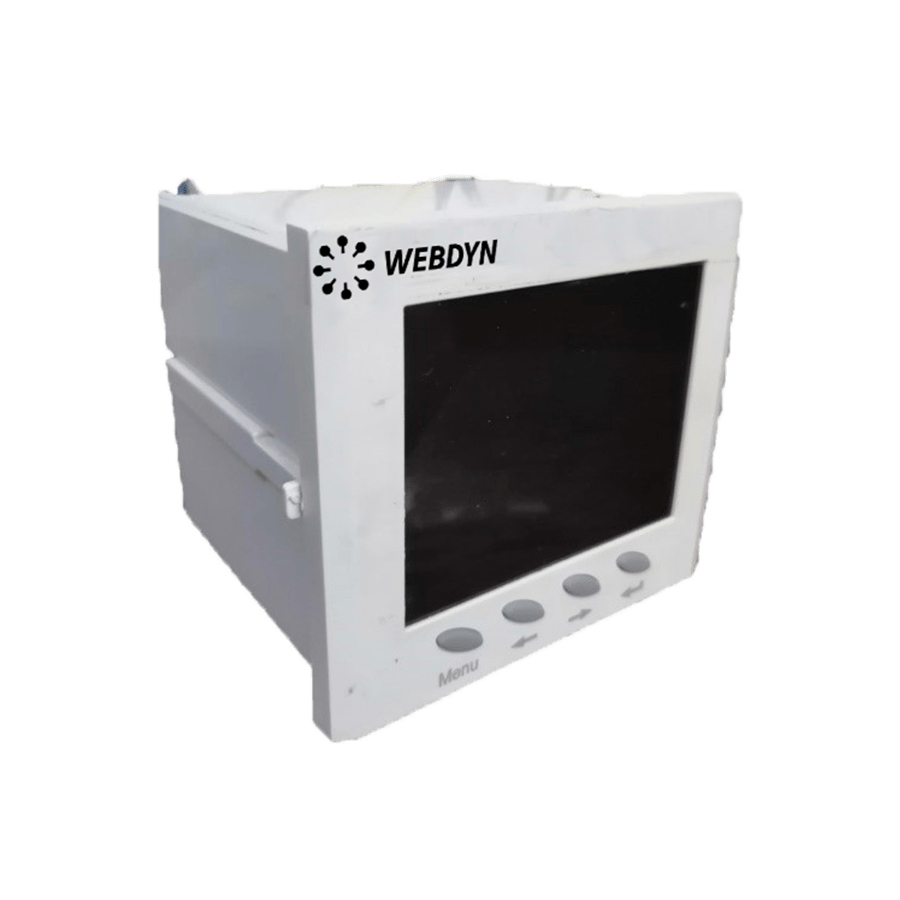
This MFM product is a multi-function power meter used to measure alarms, power pulse output, power parameters, to monitor switch status and transmits output functions.

Technical Specifications

Description MFM-WDEMO520
Accuracy 0,5%
Operating power AC 450V 5A
Voltage 220V
Current 5A
Communication RS485 port
Connection Modbus - RTU
Reference WDEM0520

Main Features

Hardware

Software

Strengths & Benefits

  • Bidirectional

  • Class 0.5

  • RS485 Modbus communication

  • 1 year warranty

Applications

  • Metering

Specifications

Interfaces

    Connectors

      Characteristics

        Do you have a question? Need a quote? Please contact us.

        This field is for validation purposes and should be left unchanged.

        Appendices and other documents

        Product End of Life cycle

        FAQ

        No, the concentrator is not able to decrypt data from WM-BUS equipment because it does not have a safe on board to guarantee the security of the encryption keys of your equipment. The recovered data is deposited without modification (without decryption) by the concentrator on your remote server.
        Please check these items in this order:
        • the battery level: if the battery level is too low or empty, the product will not run properly or not run at all.
        • Modem reception level: a bad signal at the modem may also prevent the hub from uploading files. Look to move the product or install an external antenna to improve signal quality.
        • The last configuration file: a bad configuration file can block the product.

        Remotely, by checking the regularly uploaded files if the product configuration is correct.

        On site, by passing the magnet over the product, you will hear 3 short beeps.

        Replace the product and inject the configuration from the old product into the new one. If a white list is used, remember to inject it into the new product as well.

        Appendices and other documents

        Annexes et autres documents

        Appendices and other documents

        Appendices and other documents

        Appendices and other documents

        Appendices and other documents

        Appendices and other documents

        Appendices and other documents

        Appendices and other documents

        Product End of Life Cycle

        FAQ

        CONFIGURATION OF THE WEBDYNSUN GATEWAY

        • Start by checking that your computer’s IP parameters are compatible with the WebdynSun’s “IP” address (the default is 192.168.1.12). 
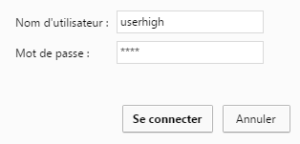
        • Next, launch a web browser (Firefox or IE) and enter the WebdynSun’s IP address in the address bar. An authentication page will appear: 

        The default accesses are:
        Username: userhigh
        Password: high

        • Click on “log in”  

        There are two types of configuration: via the web interface or via SMS.

        Configuration of the web interface:

        1/ Go to the configuration page with the gateway IP address (default 192.168.1.12)

        2/ Go to the Configuration tab.

        3/ Select either the Ethernet or modem connection mode:

        If connecting via the local network (Ethernet):

        • Edit the WebdynSun’s IP parameters by assigning it a network-compatible address.

        Please note, all fields must be completed in accordance with the configuration of your local network.

        If connecting via the GPRS network (Modem):

        • Change the connection settings of the GPRS modem to the settings provided by your mobile operator.

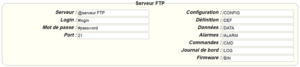
        4/ Edit the FTP server parameters.

        5/ Confirm the changes.

        6/ Restart the WebdynSun gateway using the new settings.

        7/ In the menu, click on the “installation” tab, followed by the “connection” sub-tab and start the connection.

        Configuration via SMS:

        This configuration method requires the use of an active SIM card with a data option and a pin code that must be either “0000” or disabled.
        The SIM card must be inserted into the unit before connection to the mains supply.
        After connection to the mains supply, send the following SMS messages to the number of the previously inserted SIM card:

        SMS for configuring the APN:
        After replacing the generic fields with those of your operator, send the following SMS*:
        apn=apn_name;usr=user_name;pwd=password;

        Replace the above SMS fields with the following information:

        • apn_name: APN name supplied by your mobile operator
        • user_name: APN ID supplied by your mobile operator
        • password: APN password supplied by your mobile operator

        SMS for FTP configuration:
        After replacing the generic fields with those of your FTP server, send the following SMS*:
        Ftp=server_name:user_name:password:port;

        Replace the above SMS fields with the following information:

        • server_name: FTP server address
        • user_name: FTP account ID
        • Password: FTP account password
        • Port: FTP server port (the default port is 21)

        Connection SMS:

        Send the word “connect” by SMS* to launch a connection to the FTP server

        *Please note: the formatting of the SMS must be exactly identical to that shown above (e.g.: no spaces between characters, etc.)

        There are 2 ways of resetting the gateway.

        • If connecting by Ethernet:
          • Disconnect from the mains
          • Remove the cover
          • Disconnect the battery
          • Put the DIP Switch 2 on the WebdynSun card in “ON” position
          • Start the WebdynSun by connecting it only to the mains power supply
          • Wait until all the LEDs flash and then stop flashing (3 to 5 mins).
          • Disconnect from the mains
          • Reset the Dip Switch 2 to “OFF” 
          • Reconnect the battery
          • Reconnect to the mains supply and the WebdynSun starts normally.
        • If there is a SIM card inserted in the unit:
          • Send an SMS message containing the word “factory” to the number of the inserted SIM card.

        NB : Resetting the gateway restores the configuration to its original state. Please note: data will be saved but the specific settings will not. Therefore, all the settings must be reconfigured.

        Commands can be sent to connected devices with the exception of certain inverters and Modbus slaves that do not accept write requests.

        If the device allows it, command files can be created on the FTP server.

        The WebdynSun has a memory of about 100MB.

        Therefore, if the remote server cannot be accessed, the WebdynSun gateway can backup data for several months.
        The maximum data backup time varies depending on the amount of data to be collected.

        The average backup time ranges from 3 to 4 months.

        The average battery life is 5 years.

        It may vary depending on the installation environment.

        Yes, data may be sent to a PLC if the latter is equipped with a Modbus protocol.
        The “Report” configuration file allows the WebdynSun gateway to automatically write the values read on a Modbus slave

        All our products are guaranteed for 2 years.

        For further information, please see our general conditions of sale.

        Files uploaded by the WebdynSun gateway are compressed in Gz format.

        The data contained in these files is structured in csv format.

        The data volume depends on the files exchanged.

        The average is about 5 MB per month but this varies from one installation to another.

        INVERTER COMPATIBILITY WITH THE WEBDYNSUN GATEWAY

        Different brands of inverter may be connected to the RS485(B) port or via the Ethernet port if the inverter protocol is based on the Modbus protocol (RTU or TCP).

        However, different brands of inverters cannot be connected to the same RS485(A) port.

        For a list of compatible inverters, please see the product page of the WebdynSun data gateway
        • Check if the correct inverter protocol is selected before starting detection:
        • Check the wiring and configuration of the inverters by referring to the inverter appendices.
        • Check that the inverters are not in OFF or stand-by mode.
        • Check that the line end plugs on the RS 485(A) Bus are turned on.

        COMPATIBILITY WITH MODBUS DEVICES

        Yes, any device you wish to connect must be configured and its Modbus definition file must be created.

        The configuration is mainly based on the RS485 serial bus parameters and the IP parameters.

        Yes, different Modbus devices can be connected to the same RS485 (B) port.

        However, they must have the same communication parameters (bus parameters or compatible IP parameters), in order for them to communicate with each other.

        Appendices and other documents

        Appendices and other documents

        Appendices and other documents

        Appendices and other documents

        Appendices and other documents

        • Warning – Firmware update V4.07.02 – For the old version with SIM CARD of the pin code is 0000 you can update in this version. For the second case : When you insert a SIM CARD with pin code is 0000 used in this version (4.07.02) Downgrading to a previous version is not permitted.


        PRODUCT END OF LIFE CYCLE

        Appendices and other documents

        • Warning – Firmware update V4.07.02 – For the old version with SIM CARD of the pin code is 0000 you can update in this version.

          For the second case : When you insert a SIM CARD with pin code is 0000 used in this version (4.07.02) Downgrading to a previous version is not permitted.

        PRODUCT END OF LIFE CYCLE

        Annexes and other documents

        FAQ

        Annexes and other documents

        FAQ

        Annexes and other documents

        FAQ

        Annexes and other documents

        FAQ

        CONFIGURATION OF THE WEBDYNRF GATEWAY

        • If the file is deleted from the directory after connecting the WebdynRF gateway, the problem is usually due to a file format error. The configuration and control files must follow the format described in the schema (XSD) files. To check schema consistency, open the XML file with the Notepad++ text editor and install the “XML Tool” add-on. Next, copy the corresponding XSD file to the XML file in the same directory, and select “Validate now” in XML Tool. Errors detected by the tool should be displayed.
        • If the file is not deleted from the server, the most common problem is that the file has not been located correctly. The file must be available on the server in the “INBOX” directory and in the sub-directory bearing the product UID name (e.g.: “/INBOX/0045CE/”).

        GENERAL USE OF THE WEBDYNRF GATEWAY

        The amount of data exchanged on the GPRS network varies depending on the configuration. However, the average consumption would be about 5MB / month.
        The WebdynRF gateway consumes an average of about 250mA.

        There are 2 firmware updating methods:
        Local updating:
        On the WebdynRF configuration interface, go to the “Actions” tab and select the updater in the “File upload” menu before clicking on the “Upload” button

        Remote updating:
        Upload the file containing the updater (file with extension “.bz2”) in the “BIN” directory to the FTP server . Next, place the update command in the INBOX directory corresponding to your gateway (“INBOX/”, with, the identifier of the gateway concerned)

        The update command must follow the following format:

              updater.tar.bz2
              checksum_md5

        updater.tar.bz2
        checksum_md5

        With:

        • updater.tar.bz2: Updater file name uploaded to the “BIN” directory
        • checksum_md5: Md5 code of the updater file

        A lack of connection to the FTP server may be due to a network connection problem (Ethernet or GPRS), an FTP login problem or a failure to initiate the connection.

        If you cannot connect to the network, check the following points:

        • Ethernet:
          • Modem set to “off” or “always off”
          • “Gateway” fields correctly entered
          • At least one DNS server must be configured
        • GPRS:
          • Modem set to “on”
          • APN, APN ID and APN password correctly entered
          • GPRS call number set to “*99***1#”

        If you cannot log in, check the following points:

        • Incorrect FTP parameters
        • TCP port 21 closed at output
        • Domain name resolution problem: the DNS server is not specified

        If the connection fails to initiate:

        In this case, only the automatic connection does not work. The problem is probably caused by an incorrect schedule configuration. Please note, the schedule ID must be an integer.

         PARTICULAR APPLICATION OF THE WEBDYNRF WIRELESS M-BUS GATEWAY

        For the WM-bus module data to be transmitted, you must:
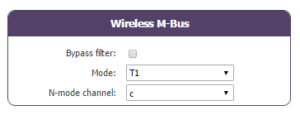
        • Choose the mode corresponding to the modules used (S, T or N)
        • Define the modules or groups of modules to be processed

        A module may be defined in a unique way by all the fields below:

        • Id
        • Manufacturer
        • Version
        • Medium

        If a module’s data is encrypted, the encryption key for this module can be defined in the “Key” field.

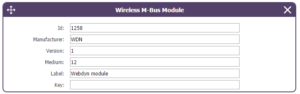
        To simplify the entry of the modules to be processed, a module group can be defined that conforms to the fields entered. The other fields will then be left empty (below is an example of a configuration for retrieving all Webdyn manufacturer (WDN) modules with the encryption key “00000000000000000000000000000000”.

        •   Id :
        •   Manufacturer : WDN
        •   Medium :
        •   Version :
        •   Label : Webdyn
        •   Key : 00000000000000000000000000000000

        Note: In order for the modules (filters) entered to be taken into account, the “ByPass filter” mode must be deactivated.

        Click here to read the media file 

        Click here to read the units file 

         PARTICULAR APPLICATION OF THE WEBDYNRF WAVENIS

        The tool is connected to the gateway via the installer access (install).

        It is therefore necessary to use the installer password (default is “middle”), and not the administrator’s password (default is “high”)

        The statuses transmitted by the WebdynRF gateway are the raw values contained in the Wavenis modules. They are transmitted without interpretation. For further details, please refer to the Coronis module manuals.

        Appendix and other documents

        FAQ

        CONFIGURATION OF THE WEBDYNRF GATEWAY

        • If the file is deleted from the directory after connecting the WebdynRF gateway, the problem is usually due to a file format error. The configuration and control files must follow the format described in the schema (XSD) files. To check schema consistency, open the XML file with the Notepad++ text editor and install the “XML Tool” add-on. Next, copy the corresponding XSD file to the XML file in the same directory, and select “Validate now” in XML Tool. Errors detected by the tool should be displayed.
        • If the file is not deleted from the server, the most common problem is that the file has not been located correctly. The file must be available on the server in the “INBOX” directory and in the sub-directory bearing the product UID name (e.g.: “/INBOX/0045CE/”).

        GENERAL USE OF THE WEBDYNRF GATEWAY

        The amount of data exchanged on the GPRS network varies depending on the configuration. However, the average consumption would be about 5MB / month.
        The WebdynRF gateway consumes an average of about 250mA.

        There are 2 firmware updating methods:
        Local updating:
        On the WebdynRF configuration interface, go to the “Actions” tab and select the updater in the “File upload” menu before clicking on the “Upload” button

        Remote updating:
        Upload the file containing the updater (file with extension “.bz2”) in the “BIN” directory to the FTP server . Next, place the update command in the INBOX directory corresponding to your gateway (“INBOX/”, with, the identifier of the gateway concerned)

        The update command must follow the following format:

              updater.tar.bz2
              checksum_md5

        updater.tar.bz2
        checksum_md5

        With:

        • updater.tar.bz2: Updater file name uploaded to the “BIN” directory
        • checksum_md5: Md5 code of the updater file

        A lack of connection to the FTP server may be due to a network connection problem (Ethernet or GPRS), an FTP login problem or a failure to initiate the connection.

        If you cannot connect to the network, check the following points:

        • Ethernet:
          • Modem set to “off” or “always off”
          • “Gateway” fields correctly entered
          • At least one DNS server must be configured
        • GPRS:
          • Modem set to “on”
          • APN, APN ID and APN password correctly entered
          • GPRS call number set to “*99***1#”

        If you cannot log in, check the following points:

        • Incorrect FTP parameters
        • TCP port 21 closed at output
        • Domain name resolution problem: the DNS server is not specified

        If the connection fails to initiate:

        In this case, only the automatic connection does not work. The problem is probably caused by an incorrect schedule configuration. Please note, the schedule ID must be an integer.

         PARTICULAR APPLICATION OF THE WEBDYNRF WIRELESS M-BUS GATEWAY

        For the WM-bus module data to be transmitted, you must:
        • Choose the mode corresponding to the modules used (S, T or N)
        • Define the modules or groups of modules to be processed

        A module may be defined in a unique way by all the fields below:

        • Id
        • Manufacturer
        • Version
        • Medium

        If a module’s data is encrypted, the encryption key for this module can be defined in the “Key” field.

        To simplify the entry of the modules to be processed, a module group can be defined that conforms to the fields entered. The other fields will then be left empty (below is an example of a configuration for retrieving all Webdyn manufacturer (WDN) modules with the encryption key “00000000000000000000000000000000”.

        •   Id :
        •   Manufacturer : WDN
        •   Medium :
        •   Version :
        •   Label : Webdyn
        •   Key : 00000000000000000000000000000000

        Note: In order for the modules (filters) entered to be taken into account, the “ByPass filter” mode must be deactivated.

        Click here to read the media file 

        Click here to read the units file 

         PARTICULAR APPLICATION OF THE WEBDYNRF WAVENIS

        The tool is connected to the gateway via the installer access (install).

        It is therefore necessary to use the installer password (default is “middle”), and not the administrator’s password (default is “high”)

        The statuses transmitted by the WebdynRF gateway are the raw values contained in the Wavenis modules. They are transmitted without interpretation. For further details, please refer to the Coronis module manuals.

        Annexes et autres documents

        • WARNING :  Pour les anciens produits qui disposent d’une carte SIM avec un code PIN à 0000 , la mise à jour vers la version 4.07.02 sera fonctionelle.

          Second cas : Si la carte SIM avec un code PIN à 0000 est utilisée dans cette version (4.07.02), le passage vers une mise à jour antérieure est interdit. 

        NOTICE DE FIN DE VIE DES PRODUITS