Suchen Sie etwas anderes?
Table of Contents
Port Range
Port Range Forwarding allows you to set up public services on your network, such as web servers, ftp servers, e-mail servers, or other specialized Internet applications. Specialized Internet applications are any applications that use Internet access to perform functions such as videoconferencing or online gaming. When users send this type of request to your network via the Internet, the router will forward those requests to the appropriate PC.

Application: Enter the name of the application in the field provided.
Start: Enter the number of the first port of the range you want to seen by users on the Internet and forwarded to your PC.
End: Enter the number of the last port of the range you want to seen by users on the Internet and forwarded to your PC.
Protocol: Chose the right protocol TCP,UDP or Both. Set this to what the application requires.
IP Address: Enter the IP Address of the PC running the application.
Enable: Click the Enable check box to enable port forwarding for the application.
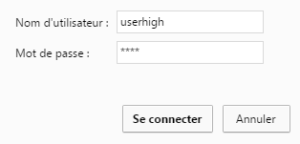


Geben Sie den Verbindungsmodus „ethernet“ oder „modem“ ein:
Stellen Sie bei einer Ethernet-Konfiguration sicher, dass die IP-Parameter mit dem Serverzugriff entsprechend der lokalen Netzwerkkonfiguration des Hubs kompatibel sind. Bei einer Ethernet-Verbindung muss die Konfiguration mit der lokalen Netztopologie des Hubs kompatibel sein, damit dieser auf die Server zugreifen kann. Diese Konfiguration erfolgt über die Konfigurationsseite „Networks“ (siehe Kapitel 3.2.2.3: „Netzwerke (Networks)“).
Bei einer Modemverbindung muss das Modem korrekt konfiguriert sein, bevor eine Verbindung hergestellt werden kann. Diese Konfiguration erfolgt auf der Konfigurationsseite „Modem“ (siehe Kapitel 3.2.2.4: „Modem“).
Die minimal zu konfigurierenden Serverparameter sind folgende:
Diese Felder müssen konfiguriert werden: „Interface“, „Type“, „Server type“, „Address“, „Port“, „Login“ und „Password“.
In den übrigen Feldern können die Standardwerte beibehalten werden, solange die Verzeichnisse zuvor korrekt angelegt wurden. Weitere Einzelheiten siehe Kapitel 3.1.2: „Konfigurationsdateien“.

Warten Sie. Der Hub startet nach ein paar Augenblicken mit der Werkseinstellung neu.