Zum Hauptinhalt springen
Suchen Sie etwas anderes?
Details of the example scenario:
- We have a device with ETH port which we want to provide with Internet access to send data to the Cloud. The Ethernet device has a local IP address of 192.168.1.70
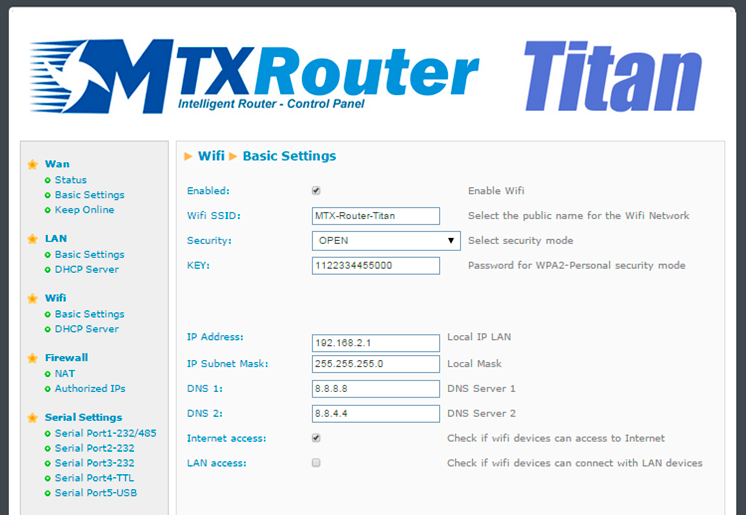
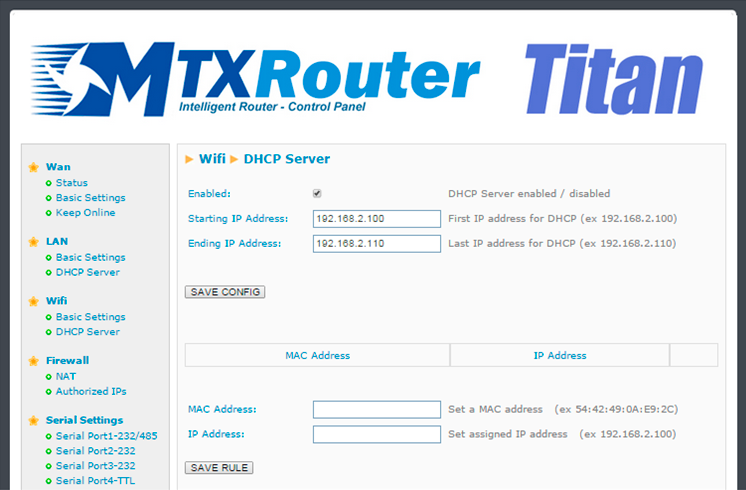
- We should also be able to provide several other WiFi devices (tablets) with Internet access. These devices will connect to the router using DHCP (given they do not have a fixed LAN IP address). The WiFi devices must not have access to the Ethernet device that is connected to the router; we must only provide them with Internet access
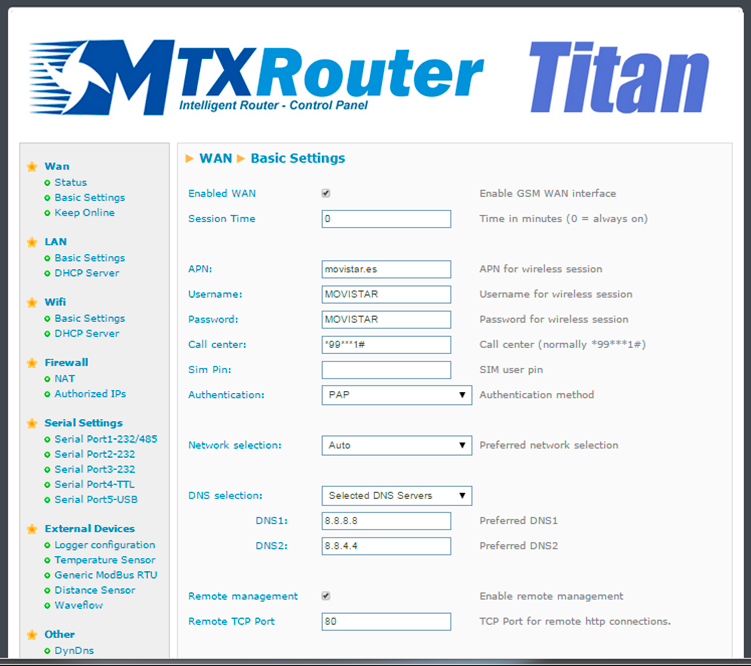
- We have to be able to access the router’s configuration remotely in the standard TCP port 80
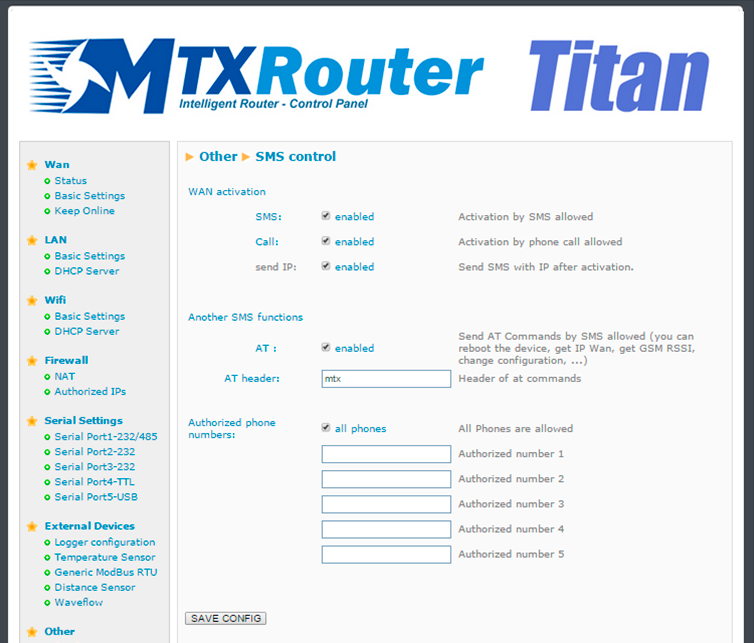
- A SIM card with a dynamic IP address will be used. We do not want to use services such as DynDNS or No-IP therefore we need to be able to obtain the router’s IP address at any time via a missed call or SMS. Via this IP we will be able to access the router’s configuration at any time
Solution: MTX-Router-Titan mini
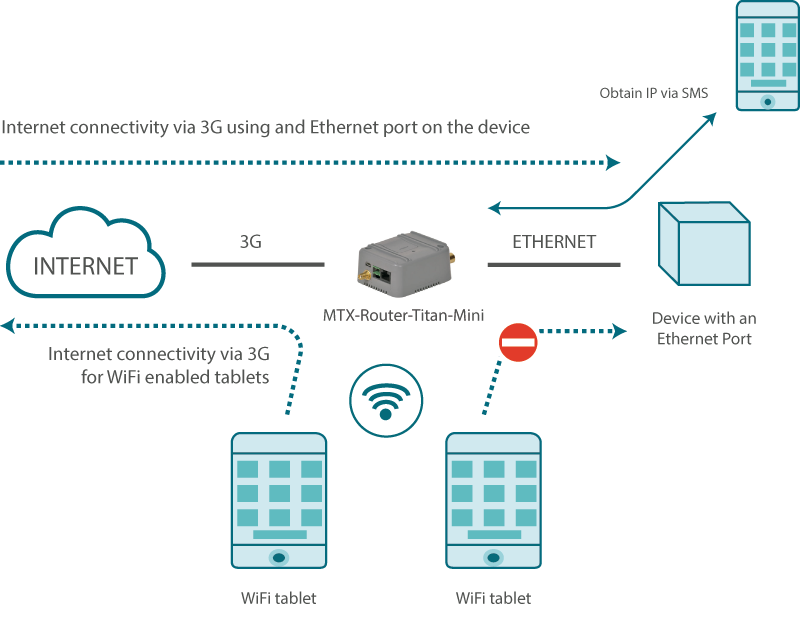
Configuration example ready for use:
Load the example from the web configuration environment from the menu “Other>Backup/Examples”
Details:
- After the configuration is loaded in our router, we can access the router’s configuration with the default username and password: “admin” and “admin”, and the IP address“192.168.1.2”
- Check the configuration in “Wan>Basic Settings”, “WiFi>Basic Settings”, “WiFi>DHCP Server”, “Other>Sms Control”
- We must specify the PLC’s Gateway IP address with the router’s LAN IP address: 192.168.1.2
- To obtain the IP address via a missed call, make sure the SIM card voice-calling services are activated. If voice-calling is restricted, it will only be possible to obtain the IP address via an SMS since these are not usually limited, although we should check this too
- Send SMS with “mtx AT+IP” or make a missed call to obtain the MTX router’s current IP address.