We have a PLC with Modbus RTU RS485 communications which, acting as master, performs periodic readings of 3 slave devices also with Modbus RTU RS485 communications
It is necessary to replicate that same scenario, with the same RS485 devices, but with IP communications, since it is not possible to carry out a wiring when the different elements are located at kilometers distances between them
SIM cards will be used with private APN, so each device will have a MTX-Tunnel modem with fixed IP address to facilitate communications and increase security
Serial port baud rate Number of bits No flow control No flow control 1 stop bit No parity APN GPRS provided by the GSM operator GPRS Login GPRS Password Modem is always GPRS connected SIM Card PIN UDP communications will be used MTX modem model Ping every 35 minutes without comms IP address to ping Send SMS with commands from any phone Modem responds with IP to missed call or SMS It is possible to send commands to MTX via SMS MTX responds with SMS to a sent SMS command It’s possible to connect to the modem from any IP We enable the Telnet of the modem Login for Telnet Password for Telnet Telnet port for remote configuration changes IPs and slave Modbus RTU address are indicated Local communications UDP port Remote communications UDP port
Configuration example (config.txt file) for the indicated scenario. MTX-Tunnel SLAVES:
Serial port baud rate Number of bits No flow control No flow control 1 stop bit No parity APN GPRS provided by the GSM operator GPRS Login GPRS Password Modem is always GPRS connected SIM Card PIN UDP communications will be used MTX modem model Ping every 35 minutes without comms IP address to ping Send SMS with commands from any phone Modem responds with IP to missed call or SMS It is possible to send commands to MTX via SMS MTX responds with SMS to a sent SMS command It’s possible to connect to the modem from any IP We enable the Telnet of the modem Login for Telnet Password for Telnet Telnet Port for Remote Configuration Changes Modbus master IPs are indicated Local communications UDP port Remote communications UDP port
Details:
To solve this scenario UDP communications are used. Each time the modem is connected to the master PLC it receives a communication frame. Modbus analyzes the received frame by looking for the Modbus RTU address of the slave to which it is addressed. Once the address is found, the frame is sent only to the IP associated with the corresponding slave modbus RTU device
If the master modem receives a modbus RTU frame and verifies that the destination address is for the slave device with address modbus @2, it forwards the received frame to the associated address, in this case 10.1.1.20.
Other devices on the market forward the frame to all associated devices, with the consequent problem of increasing data traffic and, therefore, higher economic cost and lower communication speed
Do not forget to establish a communication timeout in the master PLC of at least 2 seconds
Do you have a question? Need a quote?
Please contact us.
Appendices and other documents
Important information
SMS encryption tool (new WebdynSunPM devices will only accept encrypted SMS commands)
If you have a firmware version 4.XXXX, download first in the product the V5.0.13 (download WebdynSunPM_V5.0.13.zip) and then the last version.
No, the concentrator is not able to decrypt data from WM-BUS equipment because it does not have a safe on board to guarantee the security of the encryption keys of your equipment. The recovered data is deposited without modification (without decryption) by the concentrator on your remote server.
the battery level: if the battery level is too low or empty, the product will not run properly or not run at all.
Modem reception level: a bad signal at the modem may also prevent the hub from uploading files. Look to move the product or install an external antenna to improve signal quality.
The last configuration file: a bad configuration file can block the product.
Replace the product and inject the configuration from the old product into the new one. If a white list is used, remember to inject it into the new product as well.
Warning – Firmware update V4.07.02 –For the old version with SIM CARD of the pin code is 0000 you can update in this version.
For the second case : When you insert a SIM CARD with pin code is 0000 used in this version (4.07.02) Downgrading to a previous version is not permitted.
There are two types of configuration: via the web interface or via SMS.
Configuration of the web interface:
1/ Go to the configuration page with the gateway IP address (default 192.168.1.12)
2/ Go to the Configuration tab.
3/ Select either the Ethernet or modem connection mode:
If connecting via the local network (Ethernet):
Edit the WebdynSun’s IP parameters by assigning it a network-compatible address.
Please note, all fields must be completed in accordance with the configuration of your local network.
If connecting via the GPRS network (Modem):
Change the connection settings of the GPRS modem to the settings provided by your mobile operator.
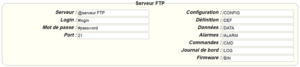
4/ Edit the FTP server parameters.
5/ Confirm the changes.
6/ Restart the WebdynSun gateway using the new settings.
7/ In the menu, click on the “installation” tab, followed by the “connection” sub-tab and start the connection.
Configuration via SMS:
This configuration method requires the use of an active SIM card with a data option and a pin code that must be either “0000” or disabled. The SIM card must be inserted into the unit before connection to the mains supply. After connection to the mains supply, send the following SMS messages to the number of the previously inserted SIM card:
SMS for configuring the APN: After replacing the generic fields with those of your operator, send the following SMS*: apn=apn_name;usr=user_name;pwd=password;
Replace the above SMS fields with the following information:
apn_name: APN name supplied by your mobile operator
user_name: APN ID supplied by your mobile operator
password: APN password supplied by your mobile operator
SMS for FTP configuration: After replacing the generic fields with those of your FTP server, send the following SMS*: Ftp=server_name:user_name:password:port;
Replace the above SMS fields with the following information:
server_name: FTP server address
user_name: FTP account ID
Password: FTP account password
Port: FTP server port (the default port is 21)
Connection SMS:
Send the word “connect” by SMS* to launch a connection to the FTP server
*Please note: the formatting of the SMS must be exactly identical to that shown above (e.g.: no spaces between characters, etc.)
Put the DIP Switch 2 on the WebdynSun card in “ON” position
Start the WebdynSun by connecting it only to the mains power supply
Wait until all the LEDs flash and then stop flashing (3 to 5 mins).
Disconnect from the mains
Reset the Dip Switch 2 to “OFF”
Reconnect the battery
Reconnect to the mains supply and the WebdynSun starts normally.
If there is a SIM card inserted in the unit:
Send an SMS message containing the word “factory” to the number of the inserted SIM card.
NB : Resetting the gateway restores the configuration to its original state. Please note: data will be saved but the specific settings will not. Therefore, all the settings must be reconfigured.
Therefore, if the remote server cannot be accessed, the WebdynSun gateway can backup data for several months. The maximum data backup time varies depending on the amount of data to be collected.
The average backup time ranges from 3 to 4 months.
Yes, data may be sent to a PLC if the latter is equipped with a Modbus protocol. The “Report” configuration file allows the WebdynSun gateway to automatically write the values read on a Modbus slave
Different brands of inverter may be connected to the RS485(B) port or via the Ethernet port if the inverter protocol is based on the Modbus protocol (RTU or TCP).
However, different brands of inverters cannot be connected to the same RS485(A) port.
Yes, different Modbus devices can be connected to the same RS485 (B) port.
However, they must have the same communication parameters (bus parameters or compatible IP parameters), in order for them to communicate with each other.
Warning – Firmware update V4.07.02 –For the old version with SIM CARD of the pin code is 0000 you can update in this version. For the second case : When you insert a SIM CARD with pin code is 0000 used in this version (4.07.02) Downgrading to a previous version is not permitted.
Warning – Firmware update V4.07.02 – For the old version with SIM CARD of the pin code is 0000 you can update in this version.
For the second case : When you insert a SIM CARD with pin code is 0000 used in this version (4.07.02) Downgrading to a previous version is not permitted.
If the file is deleted from the directory after connecting the WebdynRF gateway, the problem is usually due to a file format error. The configuration and control files must follow the format described in the schema (XSD) files.
To check schema consistency, open the XML file with the Notepad++ text editor and install the “XML Tool” add-on. Next, copy the corresponding XSD file to the XML file in the same directory, and select “Validate now” in XML Tool. Errors detected by the tool should be displayed.
If the file is not deleted from the server, the most common problem is that the file has not been located correctly. The file must be available on the server in the “INBOX” directory and in the sub-directory bearing the product UID name (e.g.: “/INBOX/0045CE/”).
There are 2 firmware updating methods: Local updating: On the WebdynRF configuration interface, go to the “Actions” tab and select the updater in the “File upload” menu before clicking on the “Upload” button
Remote updating: Upload the file containing the updater (file with extension “.bz2”) in the “BIN” directory to the FTP server . Next, place the update command in the INBOX directory corresponding to your gateway (“INBOX/”, with, the identifier of the gateway concerned)
The update command must follow the following format:
updater.tar.bz2 checksum_md5
updater.tar.bz2 checksum_md5
With:
updater.tar.bz2: Updater file name uploaded to the “BIN” directory
A lack of connection to the FTP server may be due to a network connection problem (Ethernet or GPRS), an FTP login problem or a failure to initiate the connection.
If you cannot connect to the network, check the following points:
Ethernet:
Modem set to “off” or “always off”
“Gateway” fields correctly entered
At least one DNS server must be configured
GPRS:
Modem set to “on”
APN, APN ID and APN password correctly entered
GPRS call number set to “*99***1#”
If you cannot log in, check the following points:
Incorrect FTP parameters
TCP port 21 closed at output
Domain name resolution problem: the DNS server is not specified
If the connection fails to initiate:
In this case, only the automatic connection does not work. The problem is probably caused by an incorrect schedule configuration. Please note, the schedule ID must be an integer.
PARTICULAR APPLICATION OF THE WEBDYNRF WIRELESS M-BUS GATEWAY
For the WM-bus module data to be transmitted, you must:
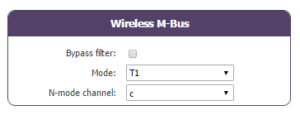
Choose the mode corresponding to the modules used (S, T or N)
Define the modules or groups of modules to be processed
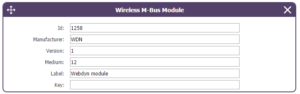
A module may be defined in a unique way by all the fields below:
Id
Manufacturer
Version
Medium
If a module’s data is encrypted, the encryption key for this module can be defined in the “Key” field.
To simplify the entry of the modules to be processed, a module group can be defined that conforms to the fields entered. The other fields will then be left empty (below is an example of a configuration for retrieving all Webdyn manufacturer (WDN) modules with the encryption key “00000000000000000000000000000000”.
Id :
Manufacturer : WDN
Medium :
Version :
Label : Webdyn
Key : 00000000000000000000000000000000
Note: In order for the modules (filters) entered to be taken into account, the “ByPass filter” mode must be deactivated.
The statuses transmitted by the WebdynRF gateway are the raw values contained in the Wavenis modules. They are transmitted without interpretation. For further details, please refer to the Coronis module manuals.
If the file is deleted from the directory after connecting the WebdynRF gateway, the problem is usually due to a file format error. The configuration and control files must follow the format described in the schema (XSD) files.
To check schema consistency, open the XML file with the Notepad++ text editor and install the “XML Tool” add-on. Next, copy the corresponding XSD file to the XML file in the same directory, and select “Validate now” in XML Tool. Errors detected by the tool should be displayed.
If the file is not deleted from the server, the most common problem is that the file has not been located correctly. The file must be available on the server in the “INBOX” directory and in the sub-directory bearing the product UID name (e.g.: “/INBOX/0045CE/”).
There are 2 firmware updating methods: Local updating: On the WebdynRF configuration interface, go to the “Actions” tab and select the updater in the “File upload” menu before clicking on the “Upload” button
Remote updating: Upload the file containing the updater (file with extension “.bz2”) in the “BIN” directory to the FTP server . Next, place the update command in the INBOX directory corresponding to your gateway (“INBOX/”, with, the identifier of the gateway concerned)
The update command must follow the following format:
updater.tar.bz2 checksum_md5
updater.tar.bz2 checksum_md5
With:
updater.tar.bz2: Updater file name uploaded to the “BIN” directory
A lack of connection to the FTP server may be due to a network connection problem (Ethernet or GPRS), an FTP login problem or a failure to initiate the connection.
If you cannot connect to the network, check the following points:
Ethernet:
Modem set to “off” or “always off”
“Gateway” fields correctly entered
At least one DNS server must be configured
GPRS:
Modem set to “on”
APN, APN ID and APN password correctly entered
GPRS call number set to “*99***1#”
If you cannot log in, check the following points:
Incorrect FTP parameters
TCP port 21 closed at output
Domain name resolution problem: the DNS server is not specified
If the connection fails to initiate:
In this case, only the automatic connection does not work. The problem is probably caused by an incorrect schedule configuration. Please note, the schedule ID must be an integer.
PARTICULAR APPLICATION OF THE WEBDYNRF WIRELESS M-BUS GATEWAY
For the WM-bus module data to be transmitted, you must:
Choose the mode corresponding to the modules used (S, T or N)
Define the modules or groups of modules to be processed
A module may be defined in a unique way by all the fields below:
Id
Manufacturer
Version
Medium
If a module’s data is encrypted, the encryption key for this module can be defined in the “Key” field.
To simplify the entry of the modules to be processed, a module group can be defined that conforms to the fields entered. The other fields will then be left empty (below is an example of a configuration for retrieving all Webdyn manufacturer (WDN) modules with the encryption key “00000000000000000000000000000000”.
Id :
Manufacturer : WDN
Medium :
Version :
Label : Webdyn
Key : 00000000000000000000000000000000
Note: In order for the modules (filters) entered to be taken into account, the “ByPass filter” mode must be deactivated.
The statuses transmitted by the WebdynRF gateway are the raw values contained in the Wavenis modules. They are transmitted without interpretation. For further details, please refer to the Coronis module manuals.
Annexes et autres documents
WARNING : Pour les anciens produits qui disposent d’une carte SIM avec un code PIN à 0000 , la mise à jour vers la version 4.07.02 sera fonctionelle.
Second cas : Si la carte SIM avec un code PIN à 0000 est utilisée dans cette version (4.07.02), le passage vers une mise à jour antérieure est interdit.
We use cookies to ensure that we give you the best experience on our website. If you continue to use this site we will assume that you are happy with it.