Zum Hauptinhalt springen
Suchen Sie etwas anderes?
Details of the example scenario:
- We have a device with a USB port (a weather station) which we want to access remotely to extract the data from the internal datalogger. The driver is of the standard USB FTDI type
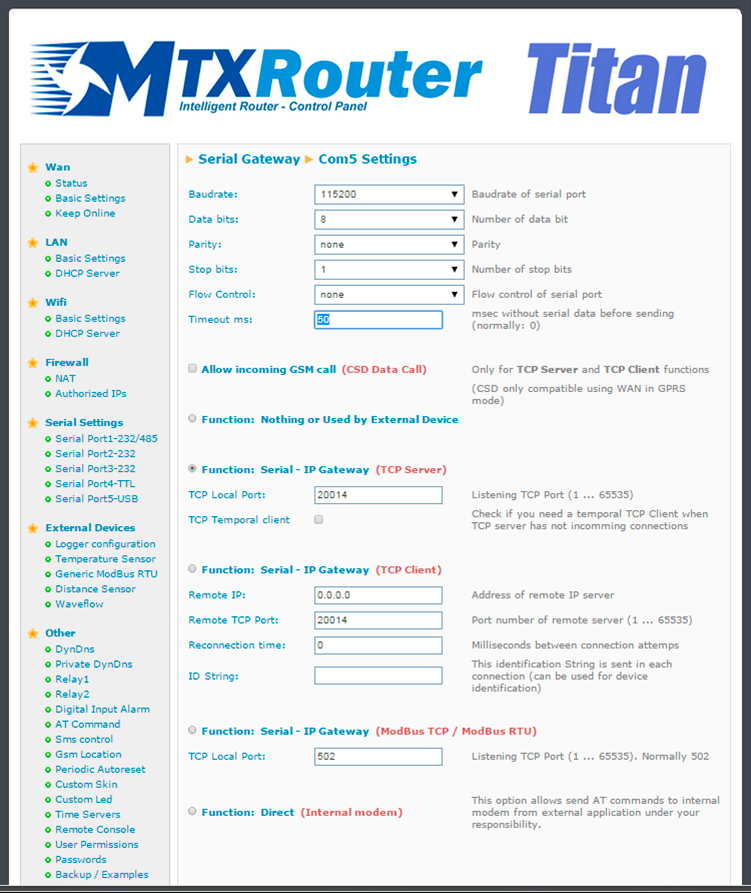
- The router will be listening in the TCP port 20014 to create a 3G-USB gateway and remotely access the device via USB port
- For simplicity, a SIM card with fixed IP address will be used in this example, although the IP address can be obtained via SMS, or we can use a missed call as seen in previous examples
Solution: MTX-Router-Titan mini

Configuration example ready for use003A:
We can easily load the example from the router’s web configuration environment from the menu “Other>Backup/Examples”.
Details:
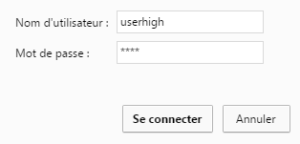
- After the configuration is loaded in our router, we can access the router’s configuration with the default username and password: “admin” and “admin”, and the IP address“192.168.1.2”
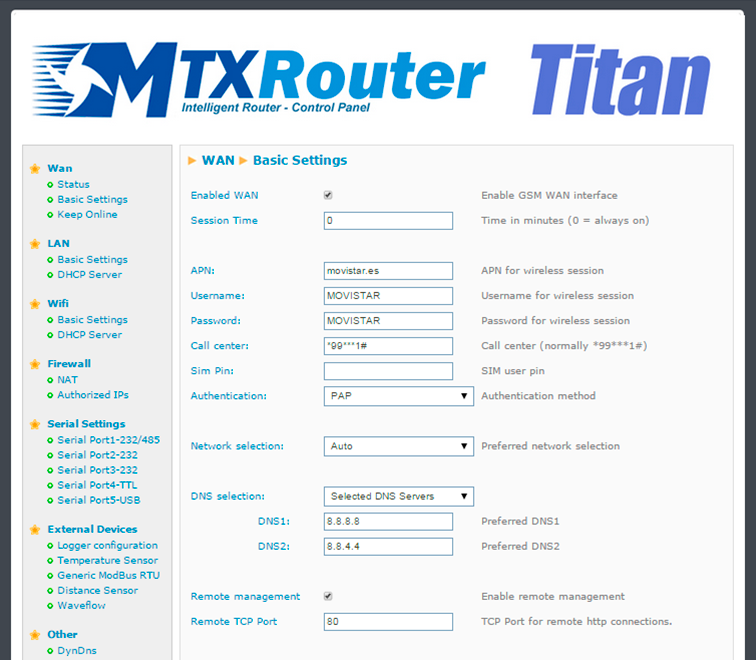
- Check the configuration in the menus “Wan>Basic Settings”, “Serial Settings>Serial Port 5”
- Remember that in order for the gateway to work, the driver that the device uses must be USB FTDI or ACM. For other USB devices, get in touch with us at gsmsupport@matrix.es
- A USB FTDI device emulates a serial device via USB. It is very important that we check the section “Serial Settings>Serial Port 5>Timeout ms” and the timeouts section, if this exists, in our control software
- If we use the MTX-Router-Titan mini device, we will likely need to use a miniUSB-USB adaptor
- Remember that the USB device must be connected to the router before the MTX router is connected to a poour source. The MTX router will not detect the USB device correctly if it is
connected after the poour supply