Tunnel – Digital I/O and relay configuration parameters: “GPIO_”

Vai al contenuto principale

Most MTX modems have one or more digital inputs and outputs, and even relays. The GPIO_ parameters allow configuring the behavior of these inputs and outputs. For example, you can configure a digital input so that when it changes state, it will send alarm SMS, or send an MQTT message, or make a voice call, or execute an AT command automatically (or a batch of AT commands) or simply configure it as a pulse counting input.
The case of the digital outputs and relays is analogous. It is possible to configure the behavior to activate an output or relay manually by means of an AT command (sent by serial, SMS, modbus, Telnet, MQTT, …) or to program a time for its activation, or to time the output, or to activate the output if A digital input is activated, or activated if an analog input is out of range, or through a voice call, or based on an astronomical clock, or even based on the value of a Modbus register from a Modbus RTU device that the modem connected to your serial port.

GPIO_mode0, GPIO_mode1, GPIO_mode2, … , GPIO_mode9

Description: the GPIOs of the MTX modems (the digital inputs and outputs) can be of various types depending on the model of the modem used. On the one hand, a GPIO can only be of type “input”, or it can only be of type “output”, or it can be configured as “input” or as “output” (that is, it can be configured as input or output).
Through this parameter each GPIO is defined as “input” or as “output”. Please refer to the characteristics tables in Annex A of this manual to know the possibilities of each GPIO depending on the MTX modem model.

Possible values:

  • input, output
  • Default values: depends on the modem model

Additional notes:

  • Set the parameter value as “input” if the GPIOx can only be configured as input or if the MTX model allows you to configure the GPIOx as input or output and for the application you want to configure the GPIOx as input
  • Set the parameter value as “output” if the GPIOx can only be configured as digital output or if the MTX model allows you to configure the GPIOx as input or output and for the application you want to configure the GPIOx as output

GPIO_config0, GPIO_config1, GPIO_config2, … , GPIO_config8

Description: using these parameters, you can configure the behavior of each of the modem’s GPIOs (digital inputs/outputs). Certain values ​​can be set in the event that the GPIO_modeX parameter is configured as “input” and others in case the GPIO_modeX is configured as “output”.

  • Default values: normal

The values ​​shown below are valid when the GPIOx is configured as “input”.

Note that many parameters actually consist of several parameters separated by period and as “;”.

  • normal

With this value the GPIO is simply configured as a digital input without any special behavior assigned. This value is useful, for example, when you want to simply query the value of a digital input (for example with the command AT ^ MTXTUNNEL = GETIOS)

Example:

GPIO_mode3: input

GPIO_config3: normal

This example configures GPIO3 as normal input.

  • sms;<value>;<timeout>;<mensajeOn>;<mensajeOff>

sms: text indicating that the GPIO is associated with an SMS alarm

<value>: 0,1,2

A 0 indicates that the alarm SMS will be sent when the digital input is not activated

A 1 indicates that the alarm SMS will be sent when the digital input is activated

A 2 indicates that the alarm SMS will be sent when the digital input changes state (from enabled to disabled or vice versa)

<timeout>: 0 … 3600

In the event of an SMS alarm condition, this value indicates the maximum time between shipments. This prevents continuous SMS sending if a digital input changes state continuously by accident.

<mensajeOn>: max. 160 characters (without 😉

In the event of an activated digital input SMS alarm condition, this is the text of the message to be sent.

<mensajeOff>: max. 160 characters (without 😉

In the event of a digital input deactivated SMS alarm condition, this is the text of the message to be sent.

Example:

GPIO_mode3: input

GPIO_config3: sms;2;15;Alarm ON;Alarm OFF

NOTE: This example configures the GPIO3 as an SMS alarm input and will send an SMS message every time the GPIO3 changes state. It will not send more than one SMS every 15 seconds, and will use the texts “Alarm ON” and “Alarm OFF” depending on the value of the digital input.
The telephone numbers used as recipients of the SMS messages are those configured in the ALARM_smsNumberX parameters (being able to specify up to 10).

  • counter

With this value the GPIO is configured as a pulse counter. The value of the pulse count can be obtained with the command AT ^ MTXTUNNEL = GETCOUNTER, <IDCounter> or send it using the LOGGER_ parameters to a WEB or MQTT server (see example 7.11 for better understanding).

Example:

GPIO_mode7: input

GPIO_config7: counter

This example configures the GPIO7 as a pulse counter input.

  • at;<atOn>;<atOff>

With this value the GPIO is configured as trigger input of an AT command (or batch of AT commands).

<atOn>: AT command to be executed when the digital input is activated
<atOff>: AT command to be executed when the digital input is deactivated

Example:

GPIO_mode2: input

GPIO_config2: at;AT^MTXTUNNEL=EXECUTE,fileon.txt;AT

NOTE: This example configures GPIO2 as an AT command trigger input. When the input is activated, the command “AT ^ MTXTUNNEL = EXECUTE, fileon.txt” is executed (which in turn executes the AT commands contained in that file, see the description of this AT command for more information). If the digital input is deactivated, the command “AT” is simply executed. See Example 8.13 for a better understanding.

  • mqtt;<value>;<timeout>

With this value the GPIO is configured to send an MQTT message when the state of that GPIO changes.

mqtt: text indicating that the GPIO is associated with sending MQTT messages

<value>: 0,1,2

0 indicates the MQTT message will be sent when the digital input is not activated

1 indicates that the MQTT message will be sent when the digital input is activated

A 2 indicates that the MQTT message will be sent when the digital input changes state (from enabled to disabled or vice versa)

<timeout>: 0 … 3600 (secs.)

In the event of an MQTT shipping condition, this value indicates the maximum time between shipments. This prevents continuous MQTT message sending if a digital input changes state continuously by accident.

Example:

GPIO_mode3: input

GPIO_config3: mqtt;2;0

This example configures GPIO3 as an input associated with sending MQTT messages. A message will be sent every time the GPIO3 input changes state with no timeout between messages. See Example 8.10 for more information and to view the MQTT message delivery format.
MQTT messages will be sent to the MQTT topic indicated in the MQTT_defaultIOTopic parameter with the Qos specified in MQTT_defaultIOQos.

  • call;<value>;<timeout>

With this value the GPIO is configured to make a voice call (without audio) when the state of said GPIO changes.

call: text indicating that the GPIO is associated with making a voice call

<value>: 0,1,2

0 indicates that the call will be made when the digital input is not activated

1 indicates that the call will be made when the digital input is activated

2 indicates that the call will be made when the digital input changes state (from activated to deactivated or vice versa)

<timeout>: 0 … 3600 (secs.)

In the event of a voice call condition, this value indicates the maximum time between calls. This avoids that if a digital input changes state continuously by accident, continuous voice calls are made.

Example:

GPIO_mode3: input

GPIO_config3: call;1;300

This example configures GPIO3 as an input associated with making a voice call. It will be done every time the GPIO3 input is activated (1) and calls cannot be made more frequently within 5 minutes (300 seconds). See Example 8.8 for more information.

  • wakeup;<value>

The wakeup mode indicates that the GPIO, configured as input, will activate the 4G/3G/2G session for the configured time (in the parameter GPRS_timeout).

call: text indicating that the GPIO, configured as input, is associated with the start of a 4G/3G/2G session

<value>: 0,1,2

0 means 4G/3G/2G session will take place when the digital input is not activated

1 means 4G/3G/2G session will take place when the digital input is activated

A 2 indicates that the 4G/3G/2G session will be performed when the digital input changes state (from enabled to disabled or vice versa)

Example:

GPRS_timeout: 10

GPIO_mode0: input

GPIO_config0: wakeup;1

This example configures GPIO0 as an input associated with activating the 4G/3G/2G session. When GPIO0 is activated the 4G/3G/2G session will be activated for 10 minutes.

The values ​​shown below are valid when the GPIOx is configured as “output”. Note that many parameters actually consist of several parameters separated by period and as “;”.

  • normal

With this value the GPIO is simply configured as a digital output without any special behavior assigned. This value is useful, for example, when you want to simply activate a digital or relay output (for example with the command AT ^ MTXTUNNEL = SETIO, X, Y).

Example:

GPIO_mode8: output

GPIO_config8: normal

This example configures GPIO8 as normal output. See Example 8.14 for further understanding.

  • on

With this value the GPIO, configured as output, is always activated.

on: text indicating that the GPIO is an always-on output

Example:

GPIO_mode8: output

GPIO_config8: on

This example configures GPIO8 as always-on output.

  • off

With this value the GPIO, configured as output, is always disabled.
off: text indicating that the GPIO is an output always disabled

Example:

GPIO_mode8: output

GPIO_config8: off

This example configures GPIO8 as always-off output.

  • time;<HHon>;<NNon>;<HHoff>;<NNoff>

Time mode allows you to specify an on/off time for a digital output/relay (remember that you can also use the “schedule.txt” file to enter more sophisticated schedules).

time: text indicating that the GPIO is a scheduled exit

<HHon>: time for activation of the output (0,…, 23) UTC
<NNon>: minutes for output activation (0… 59) UTC
<HHoff>: time to deactivate the output (0,…, 23) UTC
<NNoff>: minutes for deactivation of the output (0… 59) UTC

Example:

GPIO_mode4: output

GPIO_config4: time;22;00;8;30

This example configures GPIO4 as a scheduled output to activate at 22:00 UTC and deactivate at 8:30 UTC

  • timer

The timer mode indicates that the output is timed. In other words, by setting the output as a timer, it is possible to use the command AT ^ MTXTUNNEL = SETOUTPUTTIMER, idOutput, Xseconds so that the GPIO idOutput is activated during Xseconds. See Example 8.3 for a better understanding.

timer: text indicating that the GPIO is a timed exit

Example:

GPIO_mode4: output

GPIO_config4: timer

This example configures GPIO4 as a timed output. Configured in this way a command like AT ^ MTXTUNNEL = SETOUTPUTTIMER, 4.30 would activate the GPIO4 output for 30 seconds.

  • digital;<idGPIO>;<inverted>

Digital mode indicates that the status of an output will be related to the value of a digital input. That is, it is possible to make the digital output activate when a digital input is activated or vice versa.
digital: text indicating that the GPIO is an output related to a digital input
<idGPIO>: 0 … 9. ID of the digital input to which it is related
<inverted>: 0,1 0=no inverted, 1=invertied. Inverted implies that the output will activate when the digital input is deactivated, and vice versa

Example:

GPIO_mode0: input

GPIO_config0: normal

GPIO_mode3: output
GPIO_config3: digital;0;0

This example configures GPIO3 as output related to input GPIO0.

When GPIO0 turns on, the GPIO3 output will turn on, and when GPIO0 turns off, the GPIO3 output will also turn off.

This task (output associated with digital input) can also be carried out with the “at” mode of the digital input. See Examples 8.13 (digital input related output) and 8.16 (analog input related output) for more information.

  • modbus;<id>;<command>;<reg>;<minVal>;<maxVal>;<minAT>;<maxAT>

The “modbus” mode indicates that the status of an output will be related to the value of a modbus register from an external device. That is, it is possible to make the digital output activate when a modbus register is above a value and deactivate below a certain value.

modbus: text indicating that the GPIO is an output related to a modbus register from an external device

<id>: 1 … 254 modbus address of the modbus slave to interrogate
<command>: 3, 4 modbus read command to use
<reg>: 0 … 65535 modbus register number to read
<minVal>: 0 … 65535 the output will be deactivated when the registry value is equal to or less than this value
<maxVal>: 0 … 65535 the output will be activated when the register value is equal to or greater than this value
<minAT>: AT command to be executed when the registry value is equal to or below <minVal>
<maxAT>: AT command to be executed when the registry value is equal to or above <maxVal>

Example:

GPIO_mode3: output

GPIO_config3: modbus;10;3;1;250;300;;

This example configures GPIO3 as output related to register 1 of the modbus RTU device with address 10 and which is read with the modbus 3 command.

The GPIO3 output will deactivate when the register <= 250 and will activate when the register is> = 300. In this example AT commands are not executed.

  • call;<at>

The “call” mode indicates the output is related to a voice call. The output will activate 5 seconds when the modem receives a voice call.

call: text indicating that the GPIO is an output related to an incoming voice call and will activate 5 seconds upon receiving the call

<at>: optional AT command to be executed upon receiving the voice call

Example:

GPIO_mode8: output

GPIO_config8: call;AT+CSQ

This example configures the GPIO8 as an output which will activate for 5 seconds (fixed value) when a voice call is received in the modem. Additionally, the command “AT + CSQ” will be executed.

  • astronomical;<MinutosOffsetOcaso>;<MinutosOffsetOrto>

The “astronomical” mode indicates the output is related to the modem’s astronomical clock, activating and deactivating itself from it.
astronomical: text indicating that the GPIO is an output related to the modem’s astronomical clock

<minutosOffsetOcaso>: offset minutes for sunset
<minutosOffsetOrto>: offset minutes for ortho

Example:

MTX_latitude: 41.6333

MTX_longitude: 2.36667

GPIO_mode8: output

GPIO_config8: astronomical;-30;30

This example configures the GPIO8 as an astronomical output, configuring an offset of -30 minutes for sunset (the output will be activated 30 minutes before reaching sunset) and 30 minutes for ortho (the output will be deactivated 30 minutes after ortho).

Note that it is necessary to configure the MTX_latitude and MTX_longitude parameters so that the MTX modem knows how to configure the sunrise and sunset of the day.

Avete una domanda? Avete bisogno di un preventivo? Contattateci.

  • Questo campo serve per la convalida e dovrebbe essere lasciato inalterato.

Appendices and other documents

Important information

  • SMS encryption tool (new WebdynSunPM devices will only accept encrypted SMS commands)
  • If you have a firmware version 4.XXXX, download first in the product the V5.0.13 (download HERE) and then the last version.

Other manuals

Application Notes

Product End of Life Cycle

FAQ

Gateway configuration:

Start by checking that the computer’s IP parameters are compatible with the WebdynSunPM IP address (by default 192.168.1.12)

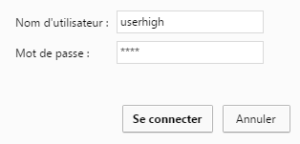
Launch a web browser (Chrome, Firefox, Edge, Safari, etc.) and enter the WebdynSunPM concentrator IP address in the address bar. An authentication page is displayed:

The default accesses are:

IdentifiantMot de passe
userhighhigh

Click “Login”

There are two configuration solutions, using the web interface and using text messages:
  • Configuration using the web interface:
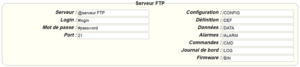
Start by establishing a connection to the concentrator by connecting to it to access the server configuration: Enter the “ethernet” or “modem” connection type: For an ethernet configuration, make sure the IP parameters are compatible with server access according to the concentrator local network configuration. For an ethernet connection, the configuration must be compatible with the concentrator’s local network topology so that it can access the servers. This configuration is done from the “Networks” configuration page (see section 3.2.2.3: “Networks). For a modem connection, the modem configuration must be correct before a connection can be set up. This configuration is done from the “Modem” configuration page (see section 3.2.2.4: “Modem). The parameters for the servers to be configured are at least the following: Therefore the following fields need to be configured: “Interface”, “Type”, “Server type”, “Address”, “Port”, “Login” and “Password”. The other fields can be left at the default values subject to the directories having been properly created beforehand. See section 3.1.2: “Configuration files for more details.
  • Text message configuration:
Text message configuration requires sending the following commands:
      • Apn: to configure the SIM card APN. (see section 3.2:“apn” modem configuration command)
      • Ftp: to configure the FTP server that will contain the concentration configuration (see section 3.3: “ftp” FTP configuration command”).
      • Connect: to launch the connection to the FTP server and load the configuration (see section 3.1: ““connect” connection command

Access to the FTP server depends on the selected solution.

If you have chosen a portal, it will give you the FTP server access identifiers.

If you want to use your own FTP server, contact your network administrator.

For all other configurations, and to determine the best solution, contact the Webdyn sales department which will advise you and direct you to the relevant contacts: contact@webdyn.com

General gateway use

There are 2 methods to force a concentrator factory reset:
  • Press the Factory Reset button on the concentrator for 20 seconds:
Wait. The concentrator will reboot using its factory configuration.
  • If a SIM card is installed and configured, a “factory” text message can also be used for factory reset. Just send the “factory” text message to the SIM card phone number (see section 3.7: “factory” reset command”)

It is possible to send commands to connected devices if they accept them.

The WebdynSunPM can store up to 50Mb of uncompressed data per declared device.

If there is no access to the remote server, the WebdynSunPM concentrator can store the data for several months.

The maximum data storage time varies depending on the amount of data to be collected and the configured collection frequency.

The average storage time varies from 3 to 4 months.

The average service life of the battery is 5 years.

It may vary depending on the installation environment.

All our products are guaranteed for 2 years.

For more information, read the general terms and conditions of sale.

The data volume depends on the exchanged files.

The average is about 5 MB per month but this varies from one installation to another.

Inverter compatibility

See section 1.4: “Supported devices”.

Modbus device compatibility:

Yes, different Modbus devices can be connected to the same serial port.

Device compatibility:

    • Same type of RS485 or 4 wire connection.
    • All devices should be able to be configured using identical bus specifications. Same speed, same parity, same number of stop bits and data bits on all devices and on the WebdynSunPM.
    • Each device must be assigned a unique Modbus address (between 1 and 247) on the bus. (UnitID)

Appendices and other documents

Product End of Life cycle

FAQ

No, the concentrator is not able to decrypt data from WM-BUS equipment because it does not have a safe on board to guarantee the security of the encryption keys of your equipment. The recovered data is deposited without modification (without decryption) by the concentrator on your remote server.
Please check these items in this order:
  • the battery level: if the battery level is too low or empty, the product will not run properly or not run at all.
  • Modem reception level: a bad signal at the modem may also prevent the hub from uploading files. Look to move the product or install an external antenna to improve signal quality.
  • The last configuration file: a bad configuration file can block the product.

Remotely, by checking the regularly uploaded files if the product configuration is correct.

On site, by passing the magnet over the product, you will hear 3 short beeps.

Replace the product and inject the configuration from the old product into the new one. If a white list is used, remember to inject it into the new product as well.

Annexes et autres documents

Anexos y otros documentos

Annexes et autres documents

Anhänge und andere Dokumente

附錄及其他文件

附錄及其他文件

附錄及其他文件

附錄及其他文件

附錄及其他文件

Appendices and other documents

Product End of Life Cycle

FAQ

CONFIGURATION OF THE WEBDYNSUN GATEWAY

  • Start by checking that your computer’s IP parameters are compatible with the WebdynSun’s “IP” address (the default is 192.168.1.12). 
  • Next, launch a web browser (Firefox or IE) and enter the WebdynSun’s IP address in the address bar. An authentication page will appear: 

The default accesses are:
Username: userhigh
Password: high

  • Click on “log in”  

There are two types of configuration: via the web interface or via SMS.

Configuration of the web interface:

1/ Go to the configuration page with the gateway IP address (default 192.168.1.12)

2/ Go to the Configuration tab.

3/ Select either the Ethernet or modem connection mode:

If connecting via the local network (Ethernet):

  • Edit the WebdynSun’s IP parameters by assigning it a network-compatible address.

Please note, all fields must be completed in accordance with the configuration of your local network.

If connecting via the GPRS network (Modem):

  • Change the connection settings of the GPRS modem to the settings provided by your mobile operator.

4/ Edit the FTP server parameters.

5/ Confirm the changes.

6/ Restart the WebdynSun gateway using the new settings.

7/ In the menu, click on the “installation” tab, followed by the “connection” sub-tab and start the connection.

Configuration via SMS:

This configuration method requires the use of an active SIM card with a data option and a pin code that must be either “0000” or disabled.
The SIM card must be inserted into the unit before connection to the mains supply.
After connection to the mains supply, send the following SMS messages to the number of the previously inserted SIM card:

SMS for configuring the APN:
After replacing the generic fields with those of your operator, send the following SMS*:
apn=apn_name;usr=user_name;pwd=password;

Replace the above SMS fields with the following information:

  • apn_name: APN name supplied by your mobile operator
  • user_name: APN ID supplied by your mobile operator
  • password: APN password supplied by your mobile operator

SMS for FTP configuration:
After replacing the generic fields with those of your FTP server, send the following SMS*:
Ftp=server_name:user_name:password:port;

Replace the above SMS fields with the following information:

  • server_name: FTP server address
  • user_name: FTP account ID
  • Password: FTP account password
  • Port: FTP server port (the default port is 21)

Connection SMS:

Send the word “connect” by SMS* to launch a connection to the FTP server

*Please note: the formatting of the SMS must be exactly identical to that shown above (e.g.: no spaces between characters, etc.)

There are 2 ways of resetting the gateway.

  • If connecting by Ethernet:
    • Disconnect from the mains
    • Remove the cover
    • Disconnect the battery
    • Put the DIP Switch 2 on the WebdynSun card in “ON” position
    • Start the WebdynSun by connecting it only to the mains power supply
    • Wait until all the LEDs flash and then stop flashing (3 to 5 mins).
    • Disconnect from the mains
    • Reset the Dip Switch 2 to “OFF” 
    • Reconnect the battery
    • Reconnect to the mains supply and the WebdynSun starts normally.
  • If there is a SIM card inserted in the unit:
    • Send an SMS message containing the word “factory” to the number of the inserted SIM card.

NB : Resetting the gateway restores the configuration to its original state. Please note: data will be saved but the specific settings will not. Therefore, all the settings must be reconfigured.

Commands can be sent to connected devices with the exception of certain inverters and Modbus slaves that do not accept write requests.

If the device allows it, command files can be created on the FTP server.

The WebdynSun has a memory of about 100MB.

Therefore, if the remote server cannot be accessed, the WebdynSun gateway can backup data for several months.
The maximum data backup time varies depending on the amount of data to be collected.

The average backup time ranges from 3 to 4 months.

The average battery life is 5 years.

It may vary depending on the installation environment.

Yes, data may be sent to a PLC if the latter is equipped with a Modbus protocol.
The “Report” configuration file allows the WebdynSun gateway to automatically write the values read on a Modbus slave

All our products are guaranteed for 2 years.

For further information, please see our general conditions of sale.

Files uploaded by the WebdynSun gateway are compressed in Gz format.

The data contained in these files is structured in csv format.

The data volume depends on the files exchanged.

The average is about 5 MB per month but this varies from one installation to another.

INVERTER COMPATIBILITY WITH THE WEBDYNSUN GATEWAY

Different brands of inverter may be connected to the RS485(B) port or via the Ethernet port if the inverter protocol is based on the Modbus protocol (RTU or TCP).

However, different brands of inverters cannot be connected to the same RS485(A) port.

For a list of compatible inverters, please see the product page of the WebdynSun data gateway
  • Check if the correct inverter protocol is selected before starting detection:
  • Check the wiring and configuration of the inverters by referring to the inverter appendices.
  • Check that the inverters are not in OFF or stand-by mode.
  • Check that the line end plugs on the RS 485(A) Bus are turned on.

COMPATIBILITY WITH MODBUS DEVICES

Yes, any device you wish to connect must be configured and its Modbus definition file must be created.

The configuration is mainly based on the RS485 serial bus parameters and the IP parameters.

Yes, different Modbus devices can be connected to the same RS485 (B) port.

However, they must have the same communication parameters (bus parameters or compatible IP parameters), in order for them to communicate with each other.

Appendices and other documents

Appendices and other documents

Anexos y otros documentos

Anhänge und andere Dokumente

Annexes et autres documents

Anexos y otros documentos

Anhänge und andere Dokumente

Annexes et autres documents

Anexos y otros documentos

Anhänge und andere Dokumente

Annexes et autres documents

Anexos y otros documentos

Anhänge und andere Dokumente

Annexes et autres documents

Appendices and other documents

Appendices and other documents

Appendices and other documents

Appendices and other documents

Appendices and other documents

Appendices and other documents

Appendices and other documents

Appendices and other documents

Appendices and other documents

Appendices and other documents

  • Warning – Firmware update V4.07.02 For the old version with SIM CARD of the pin code is 0000 you can update in this version. For the second case : When you insert a SIM CARD with pin code is 0000 used in this version (4.07.02) Downgrading to a previous version is not permitted.


PRODUCT END OF LIFE CYCLE

Appendices and other documents

  • Warning – Firmware update V4.07.02 – For the old version with SIM CARD of the pin code is 0000 you can update in this version.

    For the second case : When you insert a SIM CARD with pin code is 0000 used in this version (4.07.02) Downgrading to a previous version is not permitted.

PRODUCT END OF LIFE CYCLE

Anexos y otros documentos

Preguntas frecuentes

Anexos y otros documentos

Preguntas frecuentes

Anexos y otros documentos

Preguntas frecuentes

Anhänge und andere Dokumente

FAQ

Anhänge und andere Dokumente

FAQ

Anhänge und andere Dokumente

FAQ

Annexes and other documents

FAQ

Annexes and other documents

FAQ

Annexes and other documents

FAQ

Anexos y otros documentos

Preguntas frecuentes

CONFIGURACIÓN DE LA PASARELA WEBDYNRF

  • En caso de que el archivo se elimine de la carpeta después de conectar el concentrador WebdynRF, el problema suele deberse a un error de formato de archivo. Los archivos de configuración y comando deben respetar el formato descrito en los archivos de esquema (XSD). Para comprobar la coherencia de un esquema, abra el archivo XML con el editor de texto Notepad++ e instale el complemento «XML Tool». Luego copie el archivo XSD correspondiente al archivo XML en la misma carpeta y seleccione en XML Tool «Validate now». Deben mostrarse los errores detectados por la herramienta.
  • En caso de que el archivo no se elimine del servidor, el problema más común es que el archivo no se ha guardado en la ubicación correcta. El archivo debe estar disponible en el servidor en la carpeta «INBOX», y en la subcarpeta que lleva el nombre del identificador único (UID) del producto (ejemplo «/INBOX/0045CE/»).

USO GENERAL DE LA PASARELA WEBDYNRF

La cantidad de datos intercambiados en la red GPRS varía según la configuración. No obstante, puede estimarse un consumo de unos 5 MB / mes.
El concentrador WebdynRF consume en promedio alrededor de 250mA.
Hay 2 modos de actualización de firmware: Actualización local: En la interfaz de configuración de la WebdynRF, acceda a la pestaña «Actions» y seleccione el actualizador en el menú «File upload» antes de hacer clic en el botón «Upload». Actualización remota: Descargue del servidor FTP el archivo que contiene el actualizador (archivo con la extensión «.bz2») en la carpeta «BIN». Luego inserte el comando de actualización en la carpeta INBOX correspondiente a su concentrador («INBOX/», con el identificador del concentrador respectivo) El comando de actualización debe respetar el siguiente formato: updater.tar.bz2 checksum_md5 updater.tar.bz2 checksum_md5 Con :
  • updater.tar.bz2: Nombre del archivo de actualización descargado en la carpeta «BIN»
  • checksum_md5: Código md5 del archivo de actualización

La falta de conexión con el servidor FTP puede explicarse por un problema de conexión a la red (Ethernet o GPRS), por un problema de inicio de sesión FTP o por una no activación de la conexión.

En caso de problema de conexión a la red, verifique los puntos siguientes:

  • Ethernet:
    • Modo del módem en «off» o «alwaysoff»
    • Campos «Gateway» introducidos correctamente
    • Debe configurarse al menos un servidor DNS
  • GPRS:
    • Modo del módem en «on»
    • APN, identificador APN y contraseña APN introducidos correctamente
    • Número de llamada GPRS a «* 99***1#»


En caso de problema de inicio de sesión, verifique los puntos siguientes:

  • Parámetros FTP incorrectos
  • Puerto TCP 21 cerrado en salida
  • Problema de resolución del nombre de dominio: no se ha indicado el servidor DNS


En caso de que no se active la conexión:

En este caso, solo la conexión automática no funciona. El problema suele deberse a una configuración incorrecta de los «schedules». Atención: el ID de los schedules debe ser un número entero.

USO PARTICULAR DE LA PASARELA WEBDYNRF WIRELESS M-BUS

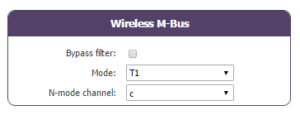
Para que se carguen los datos de los módulos WM-bus, es necesario

  • Elegir el modo correspondiente a los módulos utilizados (S, T o N)
  • Definir los módulos o grupos de módulos a tratar

Un módulo puede definirse de forma única por todos los campos siguientes:

  • Id
  • Manufacturer
  • Version
  • Medium

Si los datos de un módulo estuviesen encriptados, es posible definir la clave de encriptado de este módulo en el campo «Key».

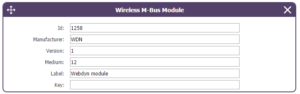
Para simplificar la introducción de los módulos a tratar, es posible definir un grupo de módulos respetando los campos introducidos. Los otros campos se dejarán vacíos (a continuación se muestra un ejemplo de configuración que permite recuperar todos los módulos del manufacturer Webdyn (WDN) con la clave de encriptado «00000000000000000000000000000000».

  •   Id :
  •   Manufacturer : WDN
  •   Medium :
  •   Version :
  •   Label : Webdyn
  •   Key : 00000000000000000000000000000000

Nota: Para que se tengan en cuenta los módulos (filtros) introducidos, el modo «ByPass filter» debe estar desactivado.

 USO PARTICULAR DE LA WEBDYNRF WAVENIS

La herramienta se conecta al concentrador accediendo al instalador (install).

Por lo tanto, debe utilizarse la contraseña del instalador (por defecto «middle»), y no la del administrador (por defecto «high»)

Los estados cargados por el concentrador WebdynRF son los valores brutos contenidos en los módulos Wavenis. Se cargan sin interpretación. Para obtener más detalles, consulte los manuales de los módulos Coronis.

Anhänge und andere Dokumente

FAQ

 KONFIGURATION DES WEBDYNRF-GATEWAYS

  • Wenn die Datei nach dem Verbinden des WebdynRF-Hubs aus dem Verzeichnis entfernt wird, liegt das Problem in der Regel an einem Fehler im Dateiformat. Die Konfigurations- und Befehlsdateien müssen das in den Schemadateien (XSD) beschriebene Format erfüllen. Um die Konsistenz eines Schemas zu überprüfen, öffnen Sie die XML-Datei mit dem Editor Notepad++ und installieren Sie das Add-in „XML Tool“. Kopieren Sie dann die XSD-Datei, die der XML-Datei entspricht, in dasselbe Verzeichnis, und wählen Sie im XML-Tool „Validate now“ (Jetzt bestätigen) aus. Die vom Tool erkannten Fehler müssen angezeigt werden.
  • Wenn die Datei nicht vom Server gelöscht wird, besteht das Problem meist darin, dass die Datei nicht an der richtigen Stelle abgelegt wurde. Die Datei muss auf dem Server im Verzeichnis „INBOX“ und im Unterverzeichnis mit dem Namen der Produkt-UID verfügbar sein (Beispiel: „/INBOX/0045CE/“).

ALLGEMEINE NUTZUNG DES WEBDYNRF-GATEWAYS

Die Menge der über das GPRS-Netzwerk ausgetauschten Daten hängt von der Konfiguration ab. Der Verbrauch kann auf etwa 5 MB/Monat geschätzt werden.
Der WebdynRF-Hub verbraucht durchschnittlich ca. 250 mA.

Es gibt 2 Modi für die Aktualisierung der Firmware:

Die lokale Aktualisierung:
Wechseln Sie auf der WebdynRF-Konfigurationsschnittstelle zur Registerkarte „Actions“ (Aktionen) und wählen Sie im Menü „File upload“ (Datei-Upload) den Updater aus, bevor Sie auf die Schaltfläche „Upload“ (Aktualisieren) klicken

Die Remote-Aktualisierung:
Laden Sie die Datei, die den Updater enthält (Datei mit der Erweiterung „.bz2“), auf den FTP-Server in das Verzeichnis „BIN“ hoch. Geben Sie dann den Aktualisierungsbefehl in das INBOX-Verzeichnis für Ihren Hub („INBOX/“ mit dem Benutzernamen des betreffenden Hubs).


Der Aktualisierungsbefehl muss folgendem Format entsprechen:

updater.tar.bz2
checksum_md5

updater.tar.bz2
checksum_md5

Mit :

  • updater.tar.bz2: Name der Updater-Datei, die in das Verzeichnis „BIN“ geladen wurde
  • checksum_md5: md5-Code der Updater-Datei

Eine fehlende Verbindung zum FTP-Server kann durch ein Problem mit der Netzwerkverbindung (Ethernet oder GPRS), ein Problem mit der FTP-Anmeldung oder durch die Nichtauslösung der Verbindung verursacht werden.

Falls Probleme mit der Netzwerkverbindung auftreten, überprüfen Sie Folgendes:

  • Ethernet:
    • Modem-Modus auf „off“ oder „alwaysoff“
    • „Gateway“-Feld korrekt eingegeben
    • Es muss mindestens ein DNS-Server konfiguriert sein
  • GPRS:
    • Modem-Modus auf „on“
    • APN, APN-Benutzername und APN-Passwort korrekt eingegeben
    • GPRS-Rufnummer auf „*99“ *1#“


Falls Probleme bei der Anmeldung auftreten, überprüfen Sie Folgendes:

  • Falsche FTP-Einstellungen
  • TCP-Port 21 geschlossen bei Ausgang
  • Problem bei der Auflösung des Domain-Namens: Der DNS-Server ist nicht näher spezifiziert


Bei Nichtauslösung der Verbindung:

In diesem Fall funktioniert nur die automatische Anmeldung nicht. Das Problem ist in der Regel auf eine schlechte Konfiguration der Zeitpläne zurückzuführen. Achtung, die ID der Zeitpläne muss eine Ganzzahl sein.

BESONDERE VERWENDUNG DES WEBDYNRF WIRELESS M-BUS-GATEWAYS

Für die Eskalation der Daten der WM-Bus-Module gehen Sie wie folgt vor:

  • Wählen Sie den Modus aus, der den verwendeten Modulen entspricht (S, T oder N)
  • Definieren Sie die Module oder Modulgruppen, die verarbeitet werden sollen

Ein Modul kann durch alle folgenden Felder eindeutig definiert werden:

  • Id
  • Manufacturer (Hersteller)
  • Version
  • Medium

Falls die Daten eines Moduls verschlüsselt werden, kann der Verschlüsselungsschlüssel für dieses Modul im Feld „Schlüssel“ festgelegt werden.

Um die Eingabe der zu verarbeitenden Module zu vereinfachen, kann eine Modulgruppe definiert werden, die die eingegebenen Felder erfüllt. Die anderen Felder bleiben dann leer (nachfolgend ein Beispiel für eine Konfiguration, mit der alle Module des Herstellers Webdyn (WDN) mit Verschlüsselungsschlüssel „00000000000000000000000000000000“ abgerufen werden können.)

  •   Id :
  •   Manufacturer (Hersteller): WDN
  •   Medium :
  •   Version :
  •   Label : Webdyn
  •   Key : 00000000000000000000000000000000

Hinweis: Damit die eingegebenen Module (Filter) berücksichtigt werden können, muss der Modus „Bypass filter“ (Bypass-Filter) deaktiviert werden.

 BESONDERE VERWENDUNG DES WAVENIS WEBDYNRF-GATEWAYS

Der Anschluss des Tools an den Hub erfolgt über den Installateurzugang (Install).

Es muss also das Passwort des Installateurs (standardmäßig „middle“) und nicht das des Administrators (standardmäßig „high“) verwendet werden.

Die Status, die vom WebdynRF-Hub eskaliert werden, sind die Rohwerte, die in den Wavenis-Modulen enthalten sind. Sie werden ohne Interpretation eskaliert. Weitere Informationen finden Sie in den Handbüchern der Coronis-Module.

Annexes and other documents

FAQ

CONFIGURATION OF THE WEBDYNRF GATEWAY

  • If the file is deleted from the directory after connecting the WebdynRF gateway, the problem is usually due to a file format error. The configuration and control files must follow the format described in the schema (XSD) files. To check schema consistency, open the XML file with the Notepad++ text editor and install the “XML Tool” add-on. Next, copy the corresponding XSD file to the XML file in the same directory, and select “Validate now” in XML Tool. Errors detected by the tool should be displayed.
  • If the file is not deleted from the server, the most common problem is that the file has not been located correctly. The file must be available on the server in the “INBOX” directory and in the sub-directory bearing the product UID name (e.g.: “/INBOX/0045CE/”).

GENERAL USE OF THE WEBDYNRF GATEWAY

The amount of data exchanged on the GPRS network varies depending on the configuration. However, the average consumption would be about 5MB / month.
The WebdynRF gateway consumes an average of about 250mA.

There are 2 firmware updating methods:
Local updating:
On the WebdynRF configuration interface, go to the “Actions” tab and select the updater in the “File upload” menu before clicking on the “Upload” button

Remote updating:
Upload the file containing the updater (file with extension “.bz2”) in the “BIN” directory to the FTP server . Next, place the update command in the INBOX directory corresponding to your gateway (“INBOX/”, with, the identifier of the gateway concerned)

The update command must follow the following format:

      updater.tar.bz2
      checksum_md5

updater.tar.bz2
checksum_md5

With:

  • updater.tar.bz2: Updater file name uploaded to the “BIN” directory
  • checksum_md5: Md5 code of the updater file

A lack of connection to the FTP server may be due to a network connection problem (Ethernet or GPRS), an FTP login problem or a failure to initiate the connection.

If you cannot connect to the network, check the following points:

  • Ethernet:
    • Modem set to “off” or “always off”
    • “Gateway” fields correctly entered
    • At least one DNS server must be configured
  • GPRS:
    • Modem set to “on”
    • APN, APN ID and APN password correctly entered
    • GPRS call number set to “*99***1#”

If you cannot log in, check the following points:

  • Incorrect FTP parameters
  • TCP port 21 closed at output
  • Domain name resolution problem: the DNS server is not specified

If the connection fails to initiate:

In this case, only the automatic connection does not work. The problem is probably caused by an incorrect schedule configuration. Please note, the schedule ID must be an integer.

 PARTICULAR APPLICATION OF THE WEBDYNRF WIRELESS M-BUS GATEWAY

For the WM-bus module data to be transmitted, you must:

  • Choose the mode corresponding to the modules used (S, T or N)
  • Define the modules or groups of modules to be processed

A module may be defined in a unique way by all the fields below:

  • Id
  • Manufacturer
  • Version
  • Medium

If a module’s data is encrypted, the encryption key for this module can be defined in the “Key” field.

To simplify the entry of the modules to be processed, a module group can be defined that conforms to the fields entered. The other fields will then be left empty (below is an example of a configuration for retrieving all Webdyn manufacturer (WDN) modules with the encryption key “00000000000000000000000000000000”.

  •   Id :
  •   Manufacturer : WDN
  •   Medium :
  •   Version :
  •   Label : Webdyn
  •   Key : 00000000000000000000000000000000

Note: In order for the modules (filters) entered to be taken into account, the “ByPass filter” mode must be deactivated.

Click here to read the media file 

Click here to read the units file 

 PARTICULAR APPLICATION OF THE WEBDYNRF WAVENIS

The tool is connected to the gateway via the installer access (install).

It is therefore necessary to use the installer password (default is “middle”), and not the administrator’s password (default is “high”)

The statuses transmitted by the WebdynRF gateway are the raw values contained in the Wavenis modules. They are transmitted without interpretation. For further details, please refer to the Coronis module manuals.

Anexos y otros documentos

Preguntas frecuentes

CONFIGURACIÓN DE LA PASARELA WEBDYNRF

  • En caso de que el archivo se elimine de la carpeta después de conectar el concentrador WebdynRF, el problema suele deberse a un error de formato de archivo. Los archivos de configuración y comando deben respetar el formato descrito en los archivos de esquema (XSD). Para comprobar la coherencia de un esquema, abra el archivo XML con el editor de texto Notepad++ e instale el complemento «XML Tool». Luego copie el archivo XSD correspondiente al archivo XML en la misma carpeta y seleccione en XML Tool «Validate now». Deben mostrarse los errores detectados por la herramienta.
  • En caso de que el archivo no se elimine del servidor, el problema más común es que el archivo no se ha guardado en la ubicación correcta. El archivo debe estar disponible en el servidor en la carpeta «INBOX», y en la subcarpeta que lleva el nombre del identificador único (UID) del producto (ejemplo «/INBOX/0045CE/»).

USO GENERAL DE LA PASARELA WEBDYNRF

La cantidad de datos intercambiados en la red GPRS varía según la configuración. No obstante, puede estimarse un consumo de unos 5 MB / mes.
El concentrador WebdynRF consume en promedio alrededor de 250mA.
Hay 2 modos de actualización de firmware: Actualización local: En la interfaz de configuración de la WebdynRF, acceda a la pestaña «Actions» y seleccione el actualizador en el menú «File upload» antes de hacer clic en el botón «Upload». Actualización remota: Descargue del servidor FTP el archivo que contiene el actualizador (archivo con la extensión «.bz2») en la carpeta «BIN». Luego inserte el comando de actualización en la carpeta INBOX correspondiente a su concentrador («INBOX/», con el identificador del concentrador respectivo) El comando de actualización debe respetar el siguiente formato: updater.tar.bz2 checksum_md5 updater.tar.bz2 checksum_md5 Con :
  • updater.tar.bz2: Nombre del archivo de actualización descargado en la carpeta «BIN»
  • checksum_md5: Código md5 del archivo de actualización

La falta de conexión con el servidor FTP puede explicarse por un problema de conexión a la red (Ethernet o GPRS), por un problema de inicio de sesión FTP o por una no activación de la conexión.

En caso de problema de conexión a la red, verifique los puntos siguientes:

  • Ethernet:
    • Modo del módem en «off» o «alwaysoff»
    • Campos «Gateway» introducidos correctamente
    • Debe configurarse al menos un servidor DNS
  • GPRS:
    • Modo del módem en «on»
    • APN, identificador APN y contraseña APN introducidos correctamente
    • Número de llamada GPRS a «* 99***1#»


En caso de problema de inicio de sesión, verifique los puntos siguientes:

  • Parámetros FTP incorrectos
  • Puerto TCP 21 cerrado en salida
  • Problema de resolución del nombre de dominio: no se ha indicado el servidor DNS


En caso de que no se active la conexión:

En este caso, solo la conexión automática no funciona. El problema suele deberse a una configuración incorrecta de los «schedules». Atención: el ID de los schedules debe ser un número entero.

USO PARTICULAR DE LA PASARELA WEBDYNRF WIRELESS M-BUS

Para que se carguen los datos de los módulos WM-bus, es necesario

  • Elegir el modo correspondiente a los módulos utilizados (S, T o N)
  • Definir los módulos o grupos de módulos a tratar

Un módulo puede definirse de forma única por todos los campos siguientes:

  • Id
  • Manufacturer
  • Version
  • Medium

Si los datos de un módulo estuviesen encriptados, es posible definir la clave de encriptado de este módulo en el campo «Key».

Para simplificar la introducción de los módulos a tratar, es posible definir un grupo de módulos respetando los campos introducidos. Los otros campos se dejarán vacíos (a continuación se muestra un ejemplo de configuración que permite recuperar todos los módulos del manufacturer Webdyn (WDN) con la clave de encriptado «00000000000000000000000000000000».

  •   Id :
  •   Manufacturer : WDN
  •   Medium :
  •   Version :
  •   Label : Webdyn
  •   Key : 00000000000000000000000000000000

Nota: Para que se tengan en cuenta los módulos (filtros) introducidos, el modo «ByPass filter» debe estar desactivado.

 USO PARTICULAR DE LA WEBDYNRF WAVENIS

La herramienta se conecta al concentrador accediendo al instalador (install).

Por lo tanto, debe utilizarse la contraseña del instalador (por defecto «middle»), y no la del administrador (por defecto «high»)

Los estados cargados por el concentrador WebdynRF son los valores brutos contenidos en los módulos Wavenis. Se cargan sin interpretación. Para obtener más detalles, consulte los manuales de los módulos Coronis.

Anhänge und andere Dokumente

FAQ

 KONFIGURATION DES WEBDYNRF-GATEWAYS

  • Wenn die Datei nach dem Verbinden des WebdynRF-Hubs aus dem Verzeichnis entfernt wird, liegt das Problem in der Regel an einem Fehler im Dateiformat. Die Konfigurations- und Befehlsdateien müssen das in den Schemadateien (XSD) beschriebene Format erfüllen. Um die Konsistenz eines Schemas zu überprüfen, öffnen Sie die XML-Datei mit dem Editor Notepad++ und installieren Sie das Add-in „XML Tool“. Kopieren Sie dann die XSD-Datei, die der XML-Datei entspricht, in dasselbe Verzeichnis, und wählen Sie im XML-Tool „Validate now“ (Jetzt bestätigen) aus. Die vom Tool erkannten Fehler müssen angezeigt werden.
  • Wenn die Datei nicht vom Server gelöscht wird, besteht das Problem meist darin, dass die Datei nicht an der richtigen Stelle abgelegt wurde. Die Datei muss auf dem Server im Verzeichnis „INBOX“ und im Unterverzeichnis mit dem Namen der Produkt-UID verfügbar sein (Beispiel: „/INBOX/0045CE/“).

ALLGEMEINE NUTZUNG DES WEBDYNRF-GATEWAYS

Die Menge der über das GPRS-Netzwerk ausgetauschten Daten hängt von der Konfiguration ab. Der Verbrauch kann auf etwa 5 MB/Monat geschätzt werden.
Der WebdynRF-Hub verbraucht durchschnittlich ca. 250 mA.

Es gibt 2 Modi für die Aktualisierung der Firmware:

Die lokale Aktualisierung:
Wechseln Sie auf der WebdynRF-Konfigurationsschnittstelle zur Registerkarte „Actions“ (Aktionen) und wählen Sie im Menü „File upload“ (Datei-Upload) den Updater aus, bevor Sie auf die Schaltfläche „Upload“ (Aktualisieren) klicken

Die Remote-Aktualisierung:
Laden Sie die Datei, die den Updater enthält (Datei mit der Erweiterung „.bz2“), auf den FTP-Server in das Verzeichnis „BIN“ hoch. Geben Sie dann den Aktualisierungsbefehl in das INBOX-Verzeichnis für Ihren Hub („INBOX/“ mit dem Benutzernamen des betreffenden Hubs).


Der Aktualisierungsbefehl muss folgendem Format entsprechen:

updater.tar.bz2
checksum_md5

updater.tar.bz2
checksum_md5

Mit :

  • updater.tar.bz2: Name der Updater-Datei, die in das Verzeichnis „BIN“ geladen wurde
  • checksum_md5: md5-Code der Updater-Datei

Eine fehlende Verbindung zum FTP-Server kann durch ein Problem mit der Netzwerkverbindung (Ethernet oder GPRS), ein Problem mit der FTP-Anmeldung oder durch die Nichtauslösung der Verbindung verursacht werden.

Falls Probleme mit der Netzwerkverbindung auftreten, überprüfen Sie Folgendes:

  • Ethernet:
    • Modem-Modus auf „off“ oder „alwaysoff“
    • „Gateway“-Feld korrekt eingegeben
    • Es muss mindestens ein DNS-Server konfiguriert sein
  • GPRS:
    • Modem-Modus auf „on“
    • APN, APN-Benutzername und APN-Passwort korrekt eingegeben
    • GPRS-Rufnummer auf „*99“ *1#“


Falls Probleme bei der Anmeldung auftreten, überprüfen Sie Folgendes:

  • Falsche FTP-Einstellungen
  • TCP-Port 21 geschlossen bei Ausgang
  • Problem bei der Auflösung des Domain-Namens: Der DNS-Server ist nicht näher spezifiziert


Bei Nichtauslösung der Verbindung:

In diesem Fall funktioniert nur die automatische Anmeldung nicht. Das Problem ist in der Regel auf eine schlechte Konfiguration der Zeitpläne zurückzuführen. Achtung, die ID der Zeitpläne muss eine Ganzzahl sein.

BESONDERE VERWENDUNG DES WEBDYNRF WIRELESS M-BUS-GATEWAYS

Für die Eskalation der Daten der WM-Bus-Module gehen Sie wie folgt vor:

  • Wählen Sie den Modus aus, der den verwendeten Modulen entspricht (S, T oder N)
  • Definieren Sie die Module oder Modulgruppen, die verarbeitet werden sollen

Ein Modul kann durch alle folgenden Felder eindeutig definiert werden:

  • Id
  • Manufacturer (Hersteller)
  • Version
  • Medium

Falls die Daten eines Moduls verschlüsselt werden, kann der Verschlüsselungsschlüssel für dieses Modul im Feld „Schlüssel“ festgelegt werden.

Um die Eingabe der zu verarbeitenden Module zu vereinfachen, kann eine Modulgruppe definiert werden, die die eingegebenen Felder erfüllt. Die anderen Felder bleiben dann leer (nachfolgend ein Beispiel für eine Konfiguration, mit der alle Module des Herstellers Webdyn (WDN) mit Verschlüsselungsschlüssel „00000000000000000000000000000000“ abgerufen werden können.)

  •   Id :
  •   Manufacturer (Hersteller): WDN
  •   Medium :
  •   Version :
  •   Label : Webdyn
  •   Key : 00000000000000000000000000000000

Hinweis: Damit die eingegebenen Module (Filter) berücksichtigt werden können, muss der Modus „Bypass filter“ (Bypass-Filter) deaktiviert werden.

 BESONDERE VERWENDUNG DES WAVENIS WEBDYNRF-GATEWAYS

Der Anschluss des Tools an den Hub erfolgt über den Installateurzugang (Install).

Es muss also das Passwort des Installateurs (standardmäßig „middle“) und nicht das des Administrators (standardmäßig „high“) verwendet werden.

Die Status, die vom WebdynRF-Hub eskaliert werden, sind die Rohwerte, die in den Wavenis-Modulen enthalten sind. Sie werden ohne Interpretation eskaliert. Weitere Informationen finden Sie in den Handbüchern der Coronis-Module.

Appendix and other documents

FAQ

CONFIGURATION OF THE WEBDYNRF GATEWAY

  • If the file is deleted from the directory after connecting the WebdynRF gateway, the problem is usually due to a file format error. The configuration and control files must follow the format described in the schema (XSD) files. To check schema consistency, open the XML file with the Notepad++ text editor and install the “XML Tool” add-on. Next, copy the corresponding XSD file to the XML file in the same directory, and select “Validate now” in XML Tool. Errors detected by the tool should be displayed.
  • If the file is not deleted from the server, the most common problem is that the file has not been located correctly. The file must be available on the server in the “INBOX” directory and in the sub-directory bearing the product UID name (e.g.: “/INBOX/0045CE/”).

GENERAL USE OF THE WEBDYNRF GATEWAY

The amount of data exchanged on the GPRS network varies depending on the configuration. However, the average consumption would be about 5MB / month.
The WebdynRF gateway consumes an average of about 250mA.

There are 2 firmware updating methods:
Local updating:
On the WebdynRF configuration interface, go to the “Actions” tab and select the updater in the “File upload” menu before clicking on the “Upload” button

Remote updating:
Upload the file containing the updater (file with extension “.bz2”) in the “BIN” directory to the FTP server . Next, place the update command in the INBOX directory corresponding to your gateway (“INBOX/”, with, the identifier of the gateway concerned)

The update command must follow the following format:

      updater.tar.bz2
      checksum_md5

updater.tar.bz2
checksum_md5

With:

  • updater.tar.bz2: Updater file name uploaded to the “BIN” directory
  • checksum_md5: Md5 code of the updater file

A lack of connection to the FTP server may be due to a network connection problem (Ethernet or GPRS), an FTP login problem or a failure to initiate the connection.

If you cannot connect to the network, check the following points:

  • Ethernet:
    • Modem set to “off” or “always off”
    • “Gateway” fields correctly entered
    • At least one DNS server must be configured
  • GPRS:
    • Modem set to “on”
    • APN, APN ID and APN password correctly entered
    • GPRS call number set to “*99***1#”

If you cannot log in, check the following points:

  • Incorrect FTP parameters
  • TCP port 21 closed at output
  • Domain name resolution problem: the DNS server is not specified

If the connection fails to initiate:

In this case, only the automatic connection does not work. The problem is probably caused by an incorrect schedule configuration. Please note, the schedule ID must be an integer.

 PARTICULAR APPLICATION OF THE WEBDYNRF WIRELESS M-BUS GATEWAY

For the WM-bus module data to be transmitted, you must:

  • Choose the mode corresponding to the modules used (S, T or N)
  • Define the modules or groups of modules to be processed

A module may be defined in a unique way by all the fields below:

  • Id
  • Manufacturer
  • Version
  • Medium

If a module’s data is encrypted, the encryption key for this module can be defined in the “Key” field.

To simplify the entry of the modules to be processed, a module group can be defined that conforms to the fields entered. The other fields will then be left empty (below is an example of a configuration for retrieving all Webdyn manufacturer (WDN) modules with the encryption key “00000000000000000000000000000000”.

  •   Id :
  •   Manufacturer : WDN
  •   Medium :
  •   Version :
  •   Label : Webdyn
  •   Key : 00000000000000000000000000000000

Note: In order for the modules (filters) entered to be taken into account, the “ByPass filter” mode must be deactivated.

Click here to read the media file 

Click here to read the units file 

 PARTICULAR APPLICATION OF THE WEBDYNRF WAVENIS

The tool is connected to the gateway via the installer access (install).

It is therefore necessary to use the installer password (default is “middle”), and not the administrator’s password (default is “high”)

The statuses transmitted by the WebdynRF gateway are the raw values contained in the Wavenis modules. They are transmitted without interpretation. For further details, please refer to the Coronis module manuals.

Annexes et autres documents

FAQ

CONFIGURATION DE LA GATEWAY WEBDYNRF

  • Dans le cas où le fichier est supprimé du répertoire après connexion du concentrateur WebdynRF, le problème est généralement dû à une erreur du format de fichier. Les fichiers de configuration et de commande doivent respecter le format décrit dans les fichiers schéma (XSD).
    Pour vérifier la cohérence d’un schéma, ouvrez le fichier XML avec l’éditeur de texte Notepad++ et installez le complément « XML Tool ». Copiez ensuite le fichier XSD correspondant au fichier XML dans le même répertoire, et sélectionnez dans XML Tool « Validate now ». Les erreurs détectées par l’outil doivent s’afficher.
  • Dans le cas où le fichier n’est pas supprimé du serveur, le problème le plus courant est que le fichier n’a pas été déposé au bon endroit. Le fichier doit être disponible sur le serveur dans le répertoire « INBOX », et dans le sous-répertoire ayant pour nom l’uid du produit (exemple « /INBOX/0045CE/ »).

 UTILISATION GÉNÉRALE DE LA GATEWAY WEBDYNRF

La quantité de données échangées sur le réseau GPRS varie en fonction de la configuration. Cependant, on peut estimer une consommation de l’ordre de 5Mo / mois.

Le concentrateur WebdynRF consomme en moyenne environ 250mA.

Il existe 2 modes de mise à jour de firmware :
La mise à jour locale :
Sur l’interface de configuration de la WebdynRF, accédez à l’onglet « Actions », et sélectionnez l’updater dans le menu « File upload » avant de cliquer sur le bouton « Upload »

La mise à jour à distance :
Téléchargez le serveur FTP le fichier contenant l’updater (fichier avec l’extension « .bz2 ») dans le répertoire « BIN ». Puis déposez la commande de mise à jour dans le répertoire INBOX correspondant à votre concentrateur (« INBOX/« , avec , l’identifiant du concentrateur concerné)

La commande de mise à jour doit respecter le format suivant:

      updater.tar.bz2
      checksum_md5

updater.tar.bz2
checksum_md5

Avec :

  • updater.tar.bz2 : Nom du fichier updater téléchargé dans le répertoire « BIN »
  • checksum_md5 : Code md5 du fichier updater

Une absence de connexion au serveur FTP peut s’expliquer par un problème de connexion au réseau (Ethernet ou GPRS), par un problème d’ouverture de session FTP ou par un non déclenchement de la connexion.

En cas de problème de connexion au réseau, vérifiez les points suivants:

  • Ethernet :
    • Mode du modem à « off » ou « alwaysoff »
    • Champs « Gateway » correctement saisi
    • Au moins un serveur DNS doit être configuré
  • GPRS :
    • Mode du modem à « on »
    • APN, identifiant APN et mot de passe APN correctement saisis
    • Numéro d’appel GPRS à « *99***1# »

En cas de problème d’ouverture de session, vérifiez les points suivants:

  • Paramètres FTP incorrects
  • Port TCP 21 fermé en sortie
  • Problème de résolution du nom de domaine: le serveur DNS n’est pas précisé

En cas de non déclenchement de la connexion :

Dans ce cas, seule la connexion automatique ne fonctionne pas. Le problème est généralement dû à une mauvaise configuration des schedules. Attention, l’ID des schedules doit être un entier.

 UTILISATION PARTICULIÈRE DE LA PASSERELLE WEBDYNRF WIRELESS M-BUS

Pour que les données des modules WM-bus soient remontées, il faut :

  • Choisir le mode correspondant aux modules utilisés (S, T ou N)
  • Définir les modules ou groupes de modules à traiter

Un module peut être défini de manière unique par l’ensemble des champs ci-dessous :

  • Id
  • Manufacturer
  • Version
  • Medium

Dans le cas où les données d’un module seraient cryptées, il est possible de définir la clé de cryptage de ce module dans le champ « Key ».

Afin de simplifier la saisie des modules à traiter, il possible de définir un groupe de module respectant les champs saisis. Les autres champs seront alors laissés vides (ci-dessous un exemple de configuration permettant de récupérer l’ensemble des modules du manufacturer Webdyn (WDN) avec pour clé de cryptage « 00000000000000000000000000000000 ».

  •   Id : 
  •   Manufacturer : WDN
  •   Medium :
  •   Version : 
  •   Label : Webdyn
  •   Key : 00000000000000000000000000000000

Remarque : Pour que les modules (filtres) saisis soient pris en compte, le mode « ByPass filter » doit être désactivé.

UTILISATION PARTICULIÈRE DE LA WEBDYNRF WAVENIS

La connexion de l’outil au concentrateur est réalisée via l’accès installateur (install).

Il faut donc utiliser le mot de passe installateur (par défaut « middle »), et non celui de l’administrateur (par défaut « high »)

Les statuts remontés par le concentrateur WebdynRF sont les valeurs brutes contenues dans les modules Wavenis. Elles sont remontées sans interprétation. Pour plus de détails, se référer aux manuels des modules Coronis.

Annexes et autres documents

FAQ

CONFIGURATION DE LA GATEWAY WEBDYNRF

  • Dans le cas où le fichier est supprimé du répertoire après connexion du concentrateur WebdynRF, le problème est généralement dû à une erreur du format de fichier. Les fichiers de configuration et de commande doivent respecter le format décrit dans les fichiers schéma (XSD).
    Pour vérifier la cohérence d’un schéma, ouvrez le fichier XML avec l’éditeur de texte Notepad++ et installez le complément « XML Tool ». Copiez ensuite le fichier XSD correspondant au fichier XML dans le même répertoire, et sélectionnez dans XML Tool « Validate now ». Les erreurs détectées par l’outil doivent s’afficher.
  • Dans le cas où le fichier n’est pas supprimé du serveur, le problème le plus courant est que le fichier n’a pas été déposé au bon endroit. Le fichier doit être disponible sur le serveur dans le répertoire « INBOX », et dans le sous-répertoire ayant pour nom l’uid du produit (exemple « /INBOX/0045CE/ »).

 UTILISATION GÉNÉRALE DE LA GATEWAY WEBDYNRF

La quantité de données échangées sur le réseau GPRS varie en fonction de la configuration. Cependant, on peut estimer une consommation de l’ordre de 5Mo / mois.

Le concentrateur WebdynRF consomme en moyenne environ 250mA.

Il existe 2 modes de mise à jour de firmware :
La mise à jour locale :
Sur l’interface de configuration de la WebdynRF, accédez à l’onglet « Actions », et sélectionnez l’updater dans le menu « File upload » avant de cliquer sur le bouton « Upload »

La mise à jour à distance :
Téléchargez le serveur FTP le fichier contenant l’updater (fichier avec l’extension « .bz2 ») dans le répertoire « BIN ». Puis déposez la commande de mise à jour dans le répertoire INBOX correspondant à votre concentrateur (« INBOX/« , avec , l’identifiant du concentrateur concerné)

La commande de mise à jour doit respecter le format suivant:

      updater.tar.bz2
      checksum_md5

updater.tar.bz2
checksum_md5

Avec :

  • updater.tar.bz2 : Nom du fichier updater téléchargé dans le répertoire « BIN »
  • checksum_md5 : Code md5 du fichier updater

Une absence de connexion au serveur FTP peut s’expliquer par un problème de connexion au réseau (Ethernet ou GPRS), par un problème d’ouverture de session FTP ou par un non déclenchement de la connexion.

En cas de problème de connexion au réseau, vérifiez les points suivants:

  • Ethernet :
    • Mode du modem à « off » ou « alwaysoff »
    • Champs « Gateway » correctement saisi
    • Au moins un serveur DNS doit être configuré
  • GPRS :
    • Mode du modem à « on »
    • APN, identifiant APN et mot de passe APN correctement saisis
    • Numéro d’appel GPRS à « *99***1# »

En cas de problème d’ouverture de session, vérifiez les points suivants:

  • Paramètres FTP incorrects
  • Port TCP 21 fermé en sortie
  • Problème de résolution du nom de domaine: le serveur DNS n’est pas précisé

En cas de non déclenchement de la connexion :

Dans ce cas, seule la connexion automatique ne fonctionne pas. Le problème est généralement dû à une mauvaise configuration des schedules. Attention, l’ID des schedules doit être un entier.

 UTILISATION PARTICULIÈRE DE LA PASSERELLE WEBDYNRF WIRELESS M-BUS

Pour que les données des modules WM-bus soient remontées, il faut :

  • Choisir le mode correspondant aux modules utilisés (S, T ou N)
  • Définir les modules ou groupes de modules à traiter

Un module peut être défini de manière unique par l’ensemble des champs ci-dessous :

  • Id
  • Manufacturer
  • Version
  • Medium

Dans le cas où les données d’un module seraient cryptées, il est possible de définir la clé de cryptage de ce module dans le champ « Key ».

Afin de simplifier la saisie des modules à traiter, il possible de définir un groupe de module respectant les champs saisis. Les autres champs seront alors laissés vides (ci-dessous un exemple de configuration permettant de récupérer l’ensemble des modules du manufacturer Webdyn (WDN) avec pour clé de cryptage « 00000000000000000000000000000000 ».

  •   Id : 
  •   Manufacturer : WDN
  •   Medium :
  •   Version : 
  •   Label : Webdyn
  •   Key : 00000000000000000000000000000000

Remarque : Pour que les modules (filtres) saisis soient pris en compte, le mode « ByPass filter » doit être désactivé.

UTILISATION PARTICULIÈRE DE LA WEBDYNRF WAVENIS

La connexion de l’outil au concentrateur est réalisée via l’accès installateur (install).

Il faut donc utiliser le mot de passe installateur (par défaut « middle »), et non celui de l’administrateur (par défaut « high »)

Les statuts remontés par le concentrateur WebdynRF sont les valeurs brutes contenues dans les modules Wavenis. Elles sont remontées sans interprétation. Pour plus de détails, se référer aux manuels des modules Coronis.

Annexes et autres documents

FAQ

Annexes et autres documents

FAQ

Annexes et autres documents

FAQ

Annexes et autres documents

  • WARNING :  Pour les anciens produits qui disposent d’une carte SIM avec un code PIN à 0000 , la mise à jour vers la version 4.07.02 sera fonctionelle.

    Second cas : Si la carte SIM avec un code PIN à 0000 est utilisée dans cette version (4.07.02), le passage vers une mise à jour antérieure est interdit. 

NOTICE DE FIN DE VIE DES PRODUITS