Suchen Sie etwas anderes?
Table of Contents
Configure

Reset router settings: Click the Yes button to reset all configuration settings to their default values. Then click the Apply Settings button.
NOTE: Any settings you have saved will be lost when the default settings are restored. After restoring the router is accessible under the default IP address 192.168.1.1 and the default password admin.
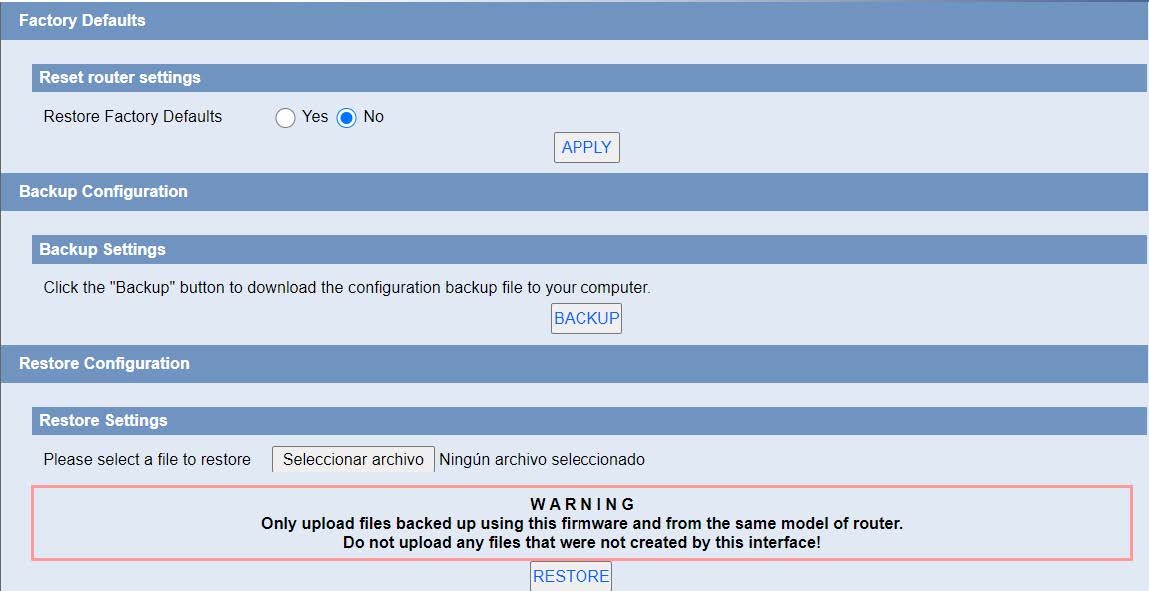
Backup Settings: You may backup your current configuration in case you need to reset the router back to its factory default settings.Click the Backup button to backup your current configuration.
Restore Settings: Click the Browse button to browse for a configuration file that is currently saved on your PC.Click the Restore button to overwrite all current configurations with the ones in the configuration file.
NOTE: Only restore configurations with files backed up using the same firmware and the same model of router.


Enter the “ethernet” or “modem” connection type:
For an ethernet configuration, make sure the IP parameters are compatible with server access according to the concentrator local network configuration. For an ethernet connection, the configuration must be compatible with the concentrator’s local network topology so that it can access the servers. This configuration is done from the “Networks” configuration page (see section 3.2.2.3: “Networks”).
For a modem connection, the modem configuration must be correct before a connection can be set up. This configuration is done from the “Modem” configuration page (see section 3.2.2.4: “Modem”).
The parameters for the servers to be configured are at least the following:
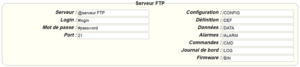
Therefore the following fields need to be configured: “Interface”, “Type”, “Server type”, “Address”, “Port”, “Login” and “Password”.
The other fields can be left at the default values subject to the directories having been properly created beforehand. See section 3.1.2: “Configuration files” for more details.

Wait. The concentrator will reboot using its factory configuration.